In this post, I’ll show you how to build an IT Support agent in Microsoft Copilot Studio. The agent will:
Help users troubleshoot IT issues using articles from cloudbuild.co.uk. However, the knowledge source can be replaced with SharePoint or another application.
Log a ticket in a SharePoint list if it can’t find an answer or if the user requests a ticket to be created. The application could be replaced with an app such as ServiceNow or Jira if needed.
Respond to the user with a ticket number.
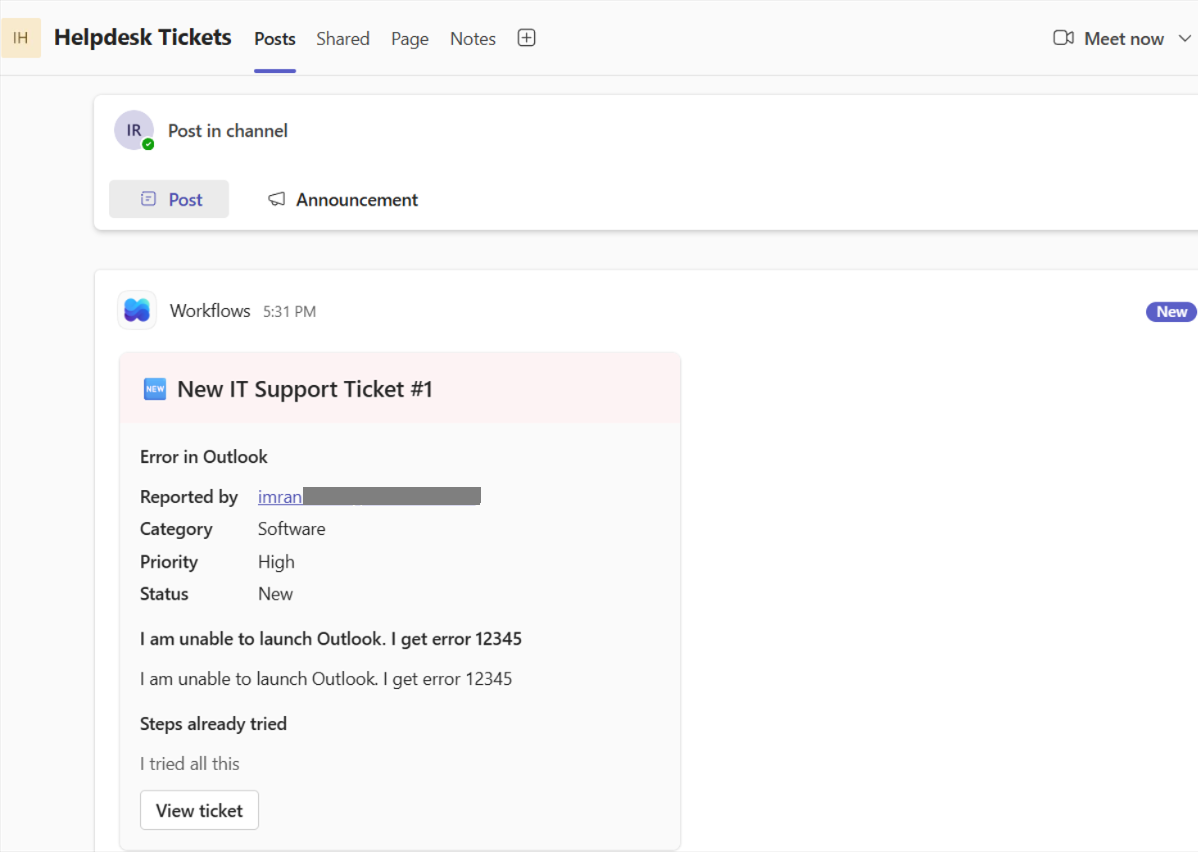
Post an Adaptive Card in the IT team’s Teams channel with the ticket details and a View ticket link allowing the IT team to view the ticket in SharePoint.
You don’t need any coding experience.
What you’ll need
Access to Copilot Studio where you can create agents.
A SharePoint site where you have edit rights. This will hold your helpdesk ticket list.
A Microsoft Teams team with a channel for IT support. You need to be a member of it.
About 45–60 minutes to set up this demo.
Note: An Adaptive Card is a neat, formatted message box in Teams. It can show headings, a table of details and buttons, instead of a block of plain text.
Step 1: Create the SharePoint list for IT Helpdesk tickets
The SharePoint list stores every ticket the agent logs. It works like a simple spreadsheet.
Open your IT SharePoint site
Select + New > List
Select Blank list
Name it IT Tickets and select Create
Select + Add column to add each column documented in the table below. Insert the column name as shown in the table below, and select Save.
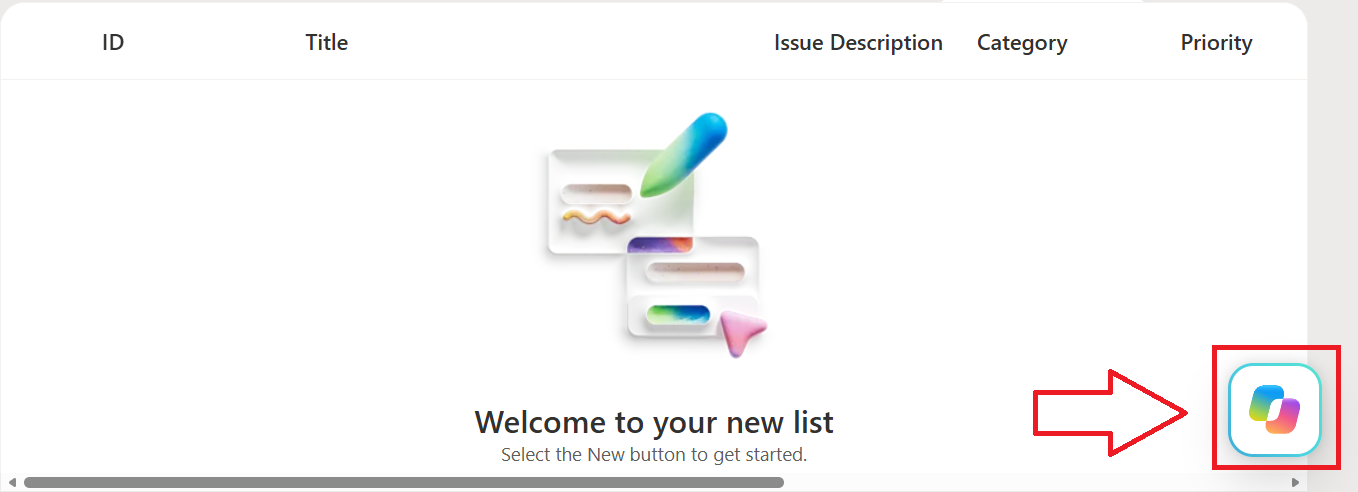
Note: If you have access to Copilot in SharePoint, click the Copilot icon which appears in the bottom right corner and ask Copilot to create the list and columns for you. If you have already create a blank list, ask Copilot to add all columns.
Column name
Column type
What to enter
Title
(already exists)
Leave as it is. This will hold a short summary of the issue
Issue Description
Multiple lines of text
—
Category
Choice
Hardware, Software, Network, Account/Access, Email, Other
Priority
Choice
Low, Medium, High, Critical (set the default to Low)
Steps Tried
Multiple lines of text
—
Reported By
Single line of text
—
Status
Choice
New, In Progress, Resolved, Closed (set the default to New)
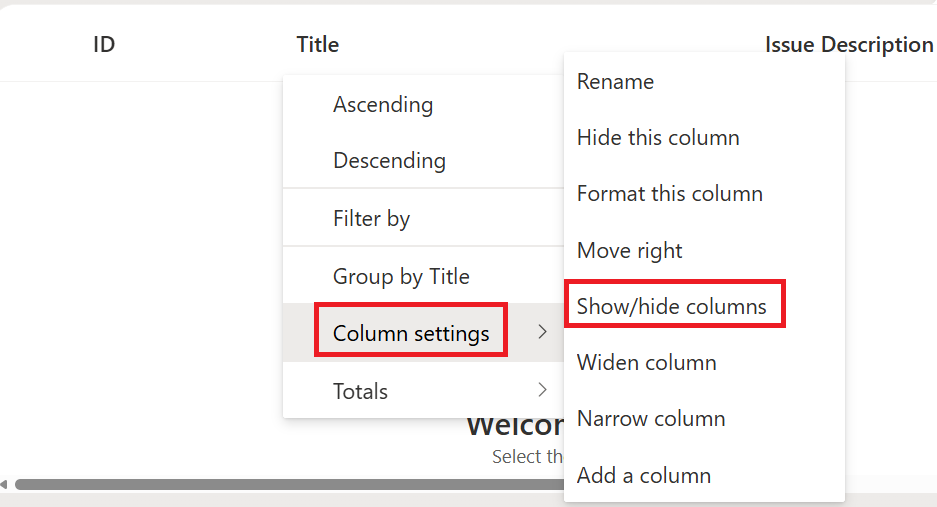
6. Click the Title column, click Column settings, click Show/hide columns, and click ID from the list. Then drag the ID column to the front before the Title column as shown in the image below. We will use the ID column for the ticket reference number.
7. After you have created the SharePoint list, copy the SharePoint List link as you will need it later.
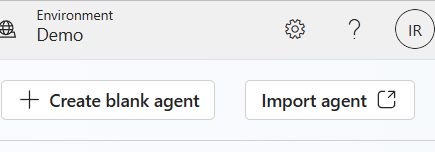
Check the environment in the top right corner if using the standard harness, or bottom right corner if using the new GitHub Copilot harness. Your organisation may have a specific environment for agents. I’m using the standard harness for this demo.
3. Click + Create blank agent
4. Fill in these fields:
Agent name: IT Support Description: Helps employees troubleshoot IT issues using cloudbuild.co.uk guidance and logs a ticket for the IT team when no solution exists.
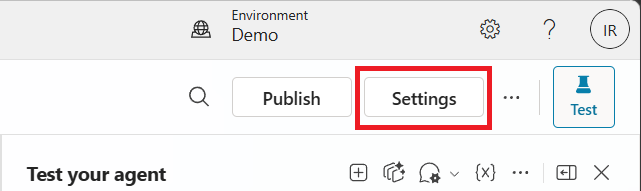
5. Now, let’s stop the agent from making up answers. With the agent’s general knowledge turned off, the agent answers only from the sources you give it, which in my case will be cloudbuild.co.uk. If the site has no answer, the agent knows to log a ticket instead of guessing. Select Settings (top right).
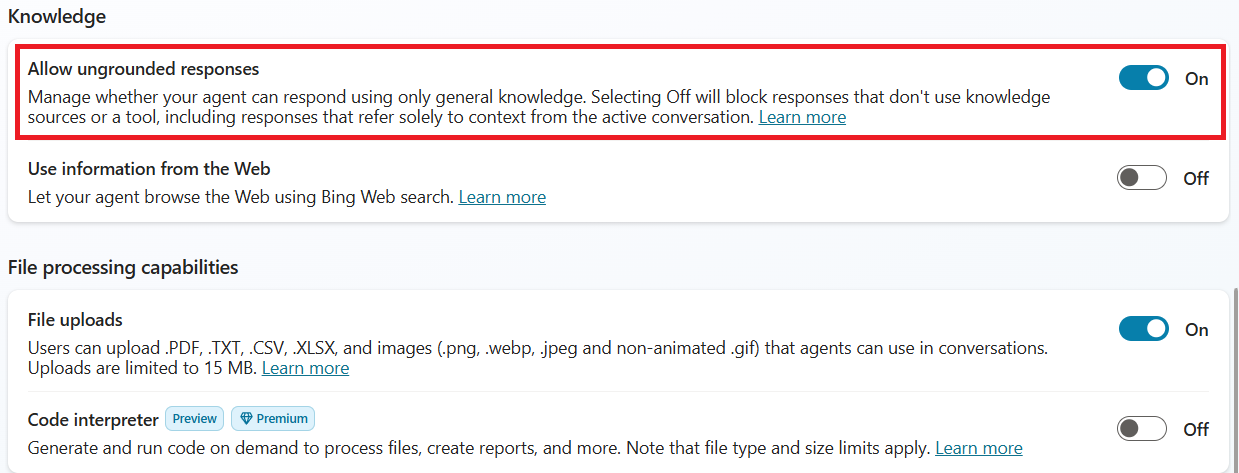
6. Scroll down to Knowledge and toggle off the option, Allow ungrounded responses
7. Select Save and close settings.
Step 3: Give the agent its instructions
The instructions are where you tell the agent how to behave when users chat with it.
Go to the Overview tab.
Next to Instructions, select Edit.
Type your agent instructions and click Save
You are a friendly IT Support assistant for employees.

1. When a user reports an IT issue, ask short clarifying questions if
   needed (device, app, error message, when it started).
2. Always search the Cloud Build knowledge source (cloudbuild.co.uk)
   first. Give clear, numbered troubleshooting steps and include a link
   to the article you used.
3. After giving the steps, ask: "Did that fix the issue?"
4. If the knowledge source has no relevant information, OR the user says
   the steps did not work:
   - Tell the user you will log a ticket with the IT team.
   - Create a short title and a clear description of the issue.
   - Choose a category (Hardware, Software, Network, Account/Access,
     Email or Other) and a priority (Low, Medium, High or Critical).
     Ask the user if you are unsure.
   - Summarise any steps already tried.
   - Do not use quotation marks in any of the ticket details.
   - Use the "HelpdeskFlow" tool.
   - Then confirm: "Your ticket #[TicketID] has been logged and the IT
     team has been notified in Teams."
5. Never make up troubleshooting steps that are not in the knowledge
   source.
6. Keep answers short, friendly and in plain English.
Step 4: Add cloudbuild.co.uk as a knowledge source
Note: you could also select SharePoint or a third party app as a knowledge source which may be more appropriate in the real world. For the purpose of this demo, I’ll be connecting to my website, cloudbuild.co.uk
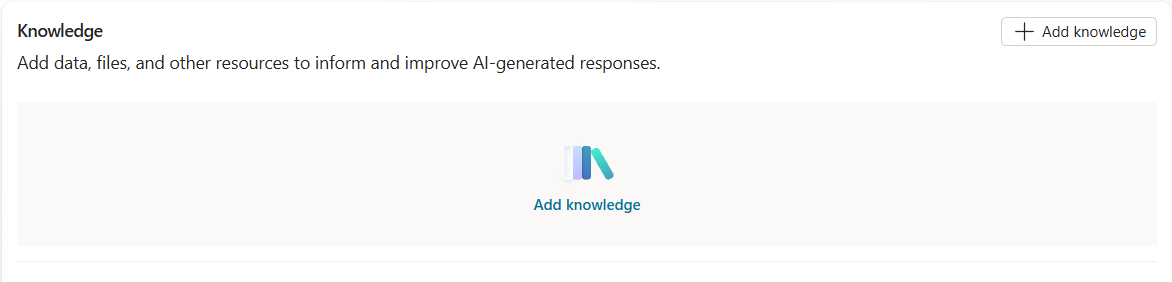
On your agent’s Overview page, scroll to Knowledge and select + Add knowledge. Or select the Knowledge tab towards the top of the page.
2. Select Public websites.
3. In the Public website link box, type https://cloudbuild.co.uk and select Add (Replace cloudbuild.co.uk with you own link)
Note: the website must be public. URLs that point to a website requiring authentication or ones not indexed by Bing aren’t supported.
4. Replace the auto filled Description with something more detailed, such as, Troubleshooting guides and how-to articles for Microsoft 365, Copilot, Azure, Outlook, Teams, Excel and general IT issues. Use this first for any IT support question.
5. Select Add to agent.
Step 5: Create the Log IT Ticket flow
This is the main part of the build. The flow is a small automation that does three things:
Creates the SharePoint ticket.
Posts the Adaptive Card to Teams.
Sends the ticket number back to the agent.
5a. Create the flow and its inputs
In your agent, select the Tools tab at the top.
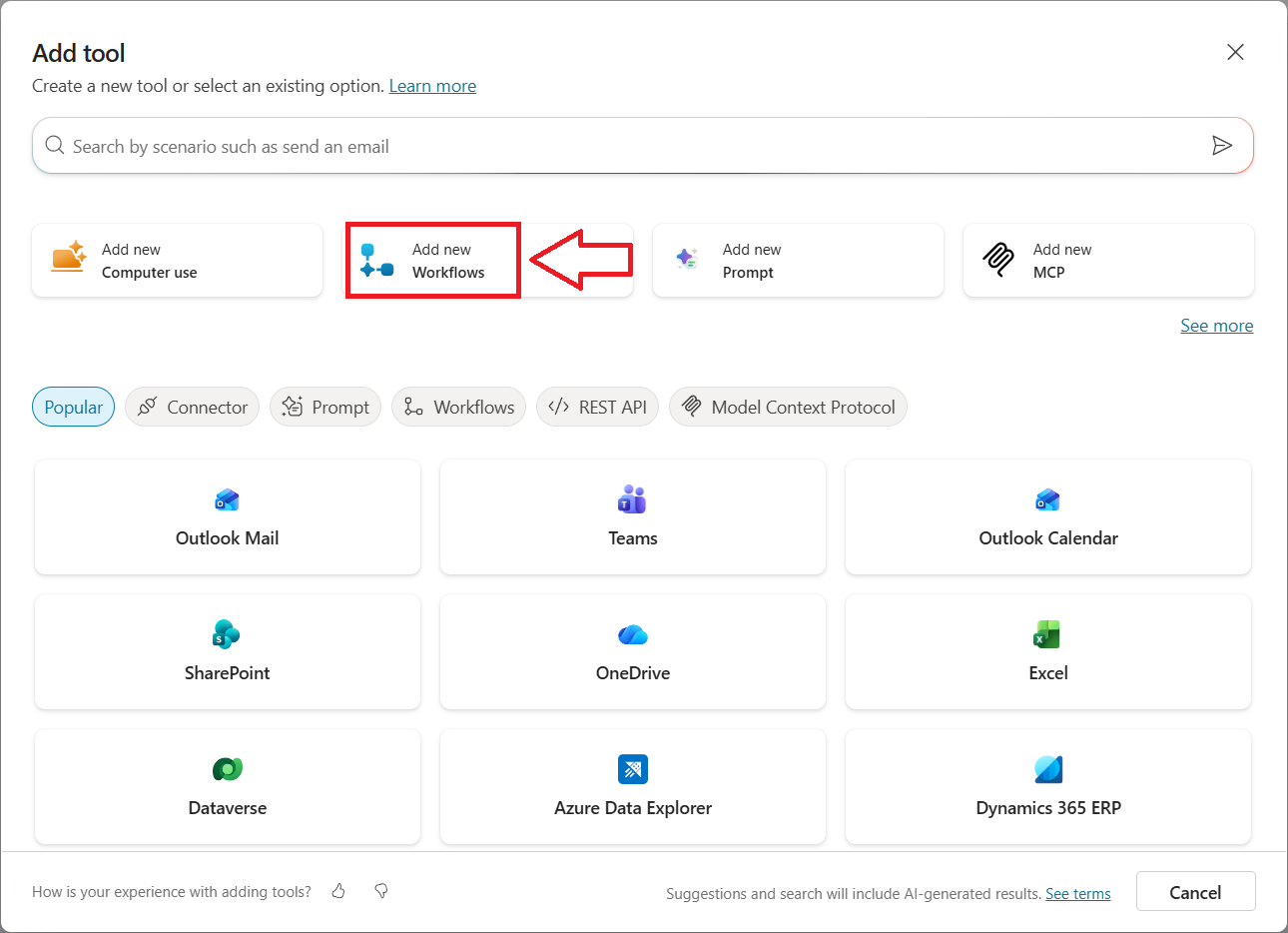
Select + Add a tool > New tool and then Workflows.
3. The flow designer opens with a trigger called When an agent calls the flow. Select it.
We will now add Inputs. Inputs are the details the agent passes to the flow, like filling in a form before you submit it.
4. Select + Add an input and then Text six times and name the inputs along with the descriptions as documented below.
Name
Description
IssueTitle
A short summary of the issue, for example Outlook not opening
IssueDescription
A full description of the issue in the user’s words
Category
One of: Hardware, Software, Network, Account/Access, Email, Other
Priority
One of: Low, Medium, High, Critical
StepsTried
Troubleshooting steps already tried
UserEmail
The email address of the user reporting the issue
5b. Add the SharePoint ‘Create item’ action
Select the + icon below the trigger named When an agent calls the flow, then click Add an action.
Search for SharePoint and select Create item.
If asked, sign in to create a connection.
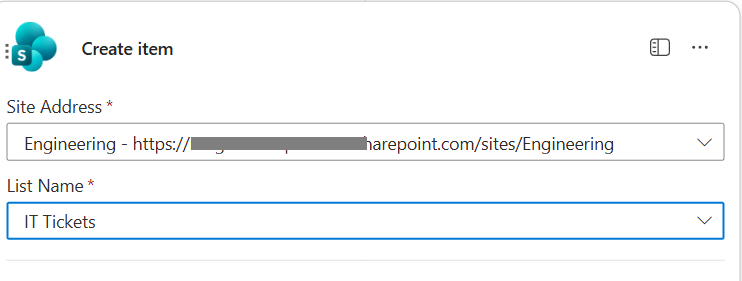
Fill in these fields: – Site Address: choose your IT site from the drop down, or paste the address you copied earlier. – Select your list name: IT Tickets
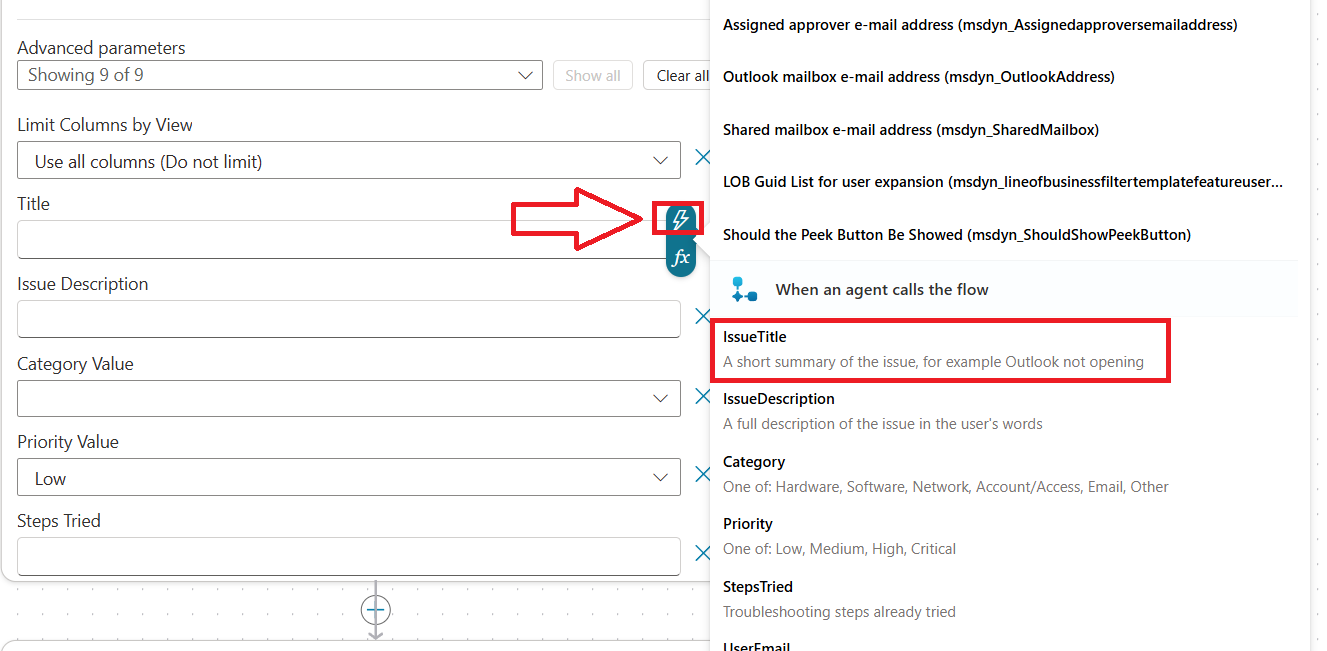
5. Your list columns should now appear. For each one, click in the box, select the lightning bolt ⚡ (dynamic content) icon and pick the matching input as shown in the image and table below. If they don’t all appear, click Show all next to advanced parameters.
List column
Value
Title
⚡ IssueTitle
Issue Description
⚡ IssueDescription
Category Value
⚡ Category (Click enter custom value, then click the dynamic content icon and select category.)
Priority Value
⚡ Priority (Click enter custom value, then click the dynamic content icon and select priority.)
Steps Tried
⚡ StepsTried
Reported By
⚡ UserEmail
Status Value
Type New
5c. Add the Teams Adaptive Card action
Select the + below Create item, then Add an action.
Search for Microsoft Teams and select Post card in a chat or channel.
3. Fill in these fields:
Post as: Flow bot
Post in: Channel
Team: choose your IT Team
Channel: choose your IT Team channel
Click in the Adaptive Card box and paste the JSON code below:
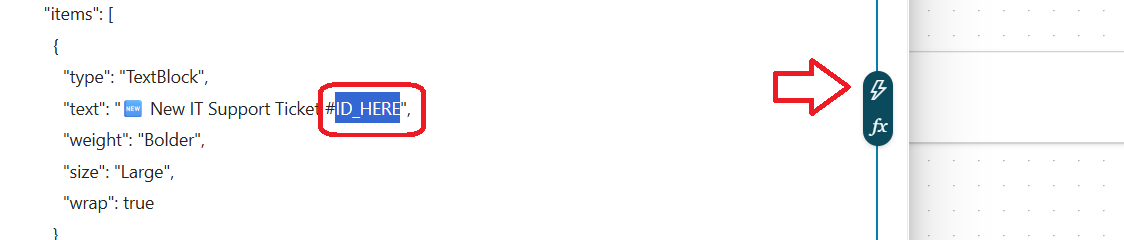
4. Replace each placeholder in the JSON script with dynamic content. Highlight the placeholder text only, keeping the quotation marks, then select the lightning bolt ⚡ and pick the item as shown below.
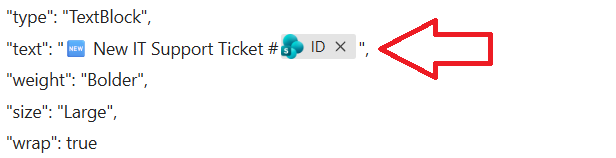
Result should look like:
5. Perform the same task for the other placeholders
Placeholder
Replace with ⚡
ID_HERE
ID
TITLE_HERE
IssueTitle
EMAIL_HERE
UserEmail
CATEGORY_HERE
Category
PRIORITY_HERE
Priority
DESCRIPTION_HERE
IssueDescription
STEPS_HERE
StepsTried
LINK_HERE
Link to item (use the search box if unable to locate Link to item) This will send the IT team a direct link when posting a message in the Teams channel.
Note: Be careful not to delete the quotation marks " " around each placeholder. If one goes missing, the card won’t post. If a user types quotation marks (") in their issue description, the card can fail to post. If this happens during testing, rephrase the test issue without quotes. For a permanent fix, ask the agent (in Step 3) to avoid using quotation marks in ticket fields.
5d. Send the ticket number back to the agent
Click the Respond to the agent action at the bottom of the flow. If it isn’t there, add it with +.
Select + Add an output > Text.
Name it TicketID, and for the value select ⚡ ID
5e. Save and publish the flow
Select Save draft (top right).
Select Publish.
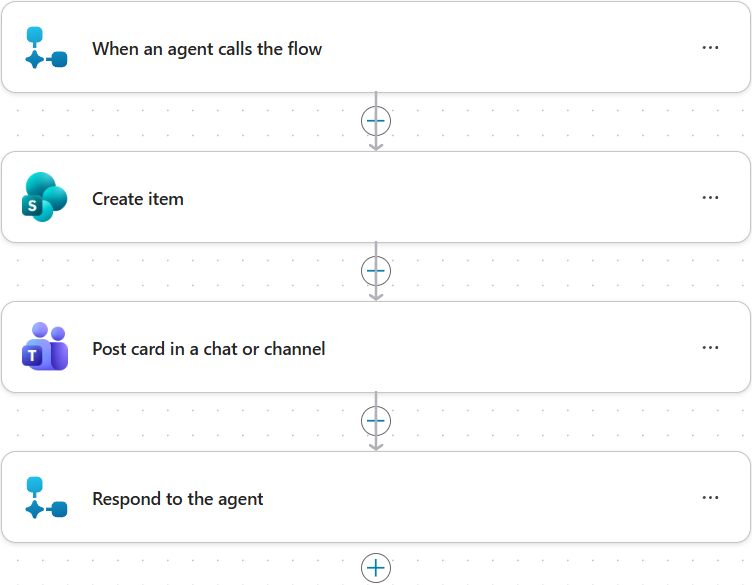
Your flow should read, from top to bottom: When an agent calls the flow > Create item > Post card in a chat or channel > Respond to the agent.
Step 6: Test the flow by clicking Test
Click Test
2. Enter some dummy data and click Run flow
3. Result – SharePoint list updated
4. Result – Message posted in Teams
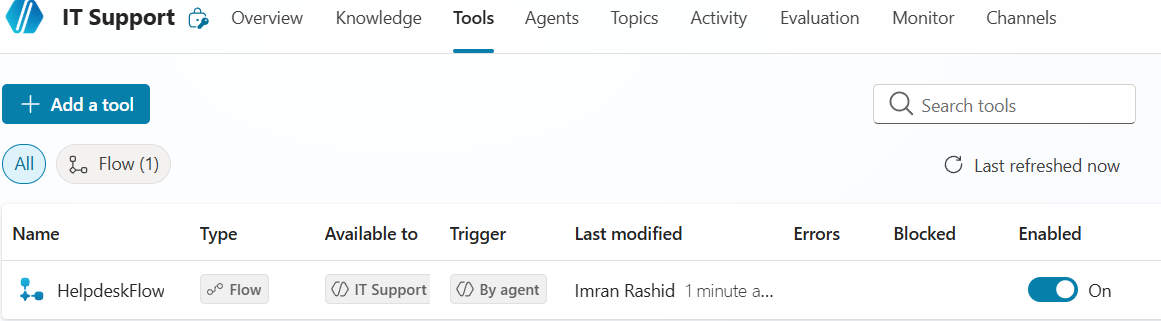
5. Back to your agent in Copilot Studio, click Tools and add the workflow you just created. Give the workflow a description of The agent runs this flow when a user wants to log a ticket with helpdesk, and then click save.
6. Now, let’s test via the agent. Open the test pane of the agent in Copilot Studio
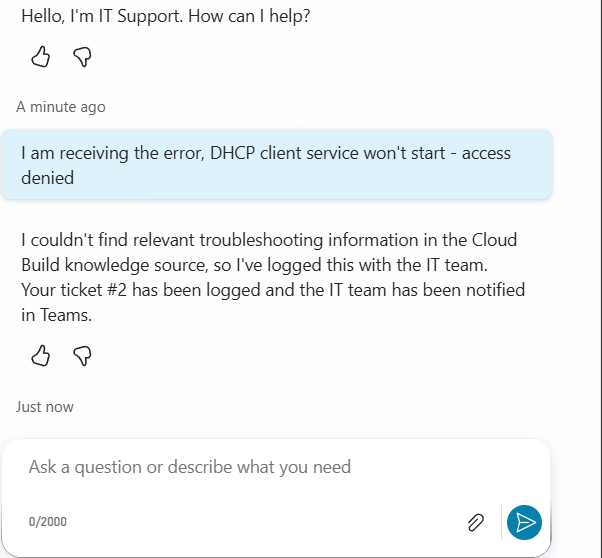
I’ll post the following message
“I am receiving the error, DHCP client service won’t start – access denied”
The agent is unable to locate the information, so logs a ticket automatically and provides a ticket reference number.
7. A new record is added to the SharePoint list
8. and sends a message to the IT Helpdesk Teams channel
9. If I ask the agent to help me log a ticket with IT, the agent asks me for further details as instructed and then logs a ticket, as shown in the image below.
I hope you found this post useful. Thanks for reading and see you at the next one.
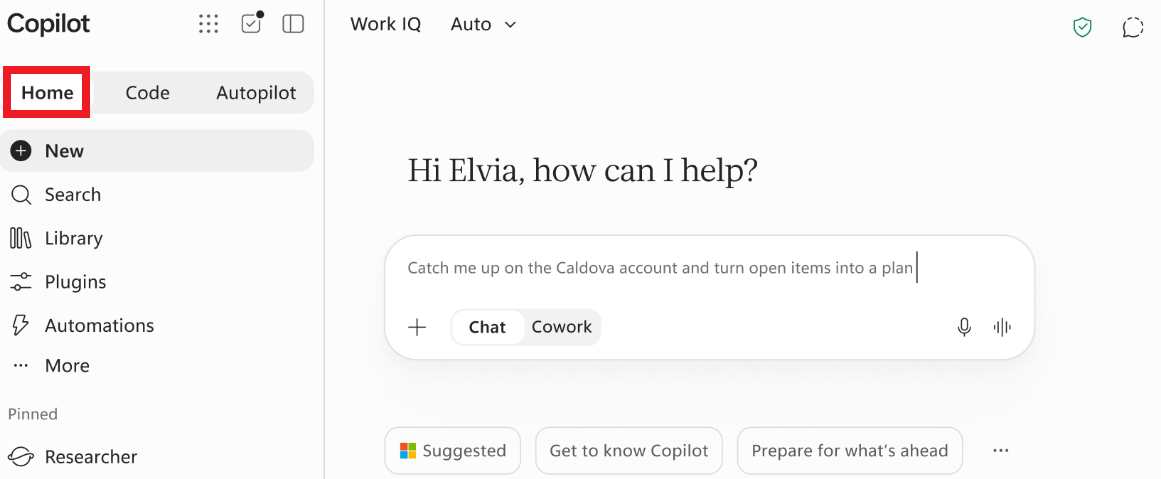
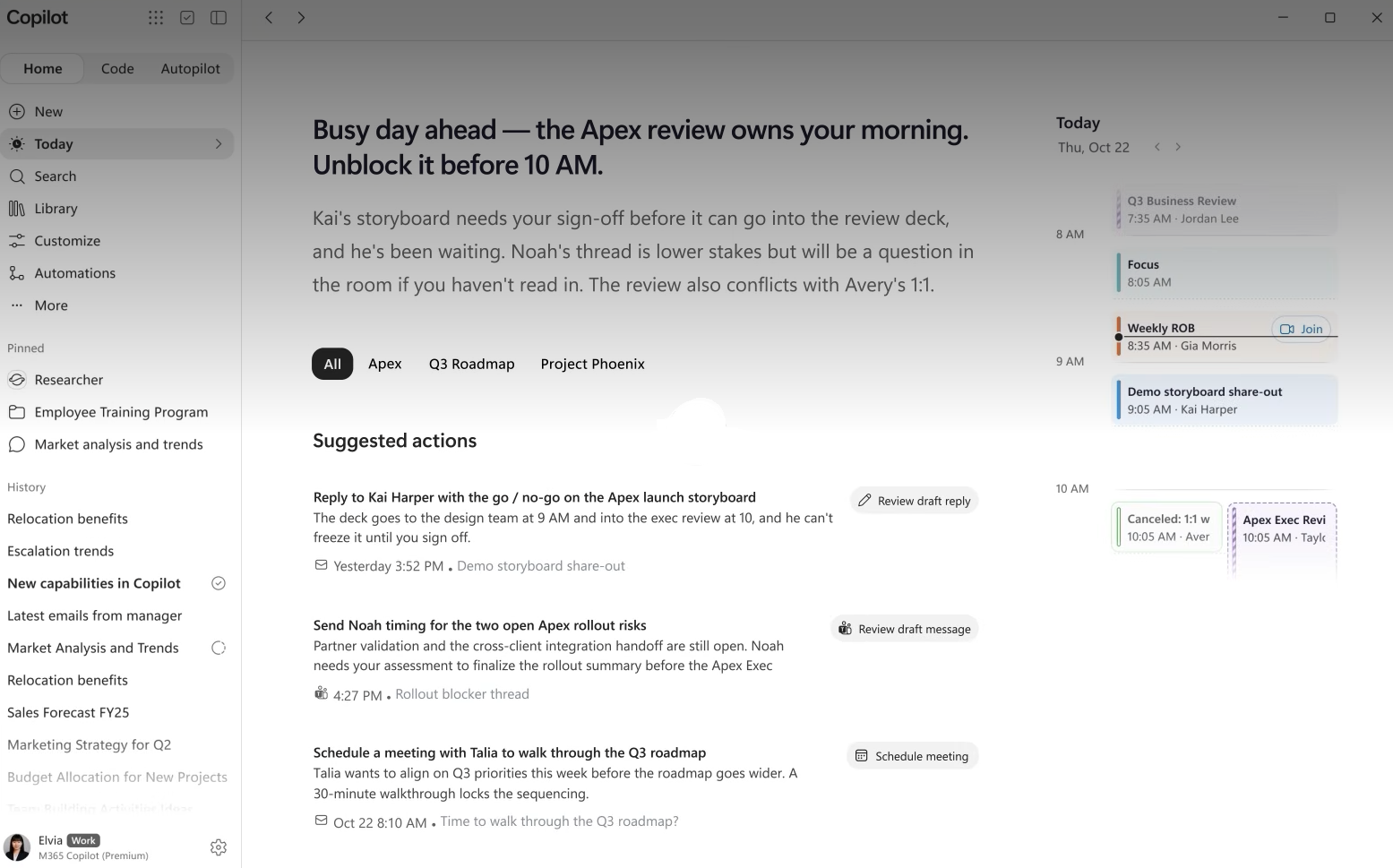
Microsoft has announced some exciting changes to Copilot, introducing three new capabilities called Home, Code and Autopilot. In this blog post, I will discuss each one including additional topics such as Office, Today, Cost and Governance. These changes will gradually be rolled out so may not be available at the time of writing this post.
At first glance, those names don’t tell us very much. So here’s a quick summary before we dive into each feature in more detail:
Home is your new starting point in Copilot, bringing Chat and Cowork together in one place. Office in Copilot also brings Word, Excel and PowerPoint directly into the experience.
Code is where you build. Describe an app, tracker, dashboard, automation or workflow in natural language and Copilot can build it for you. You do not need to be a professional developer.
Autopilot (previously known as Scout) is where you delegate ongoing work. It’s a digital colleague designed to continue working towards a goal without waiting for you to provide another prompt. It’s an agent which runs in the background in the cloud, so it’s not disrupted when your machine is shut down.
And eventually, Microsoft says you won’t necessarily have to decide which one to use. You’ll describe what you want to accomplish and Copilot will be able to route the work to Chat, Cowork or Code depending on what’s appropriate.
In this blog post I will explain the new features in further detail.
Let’s get started.
If you have used Copilot so far, you will know that it is a clever assistant you chat with. Well, it is growing from something you ask questions to, into something that can start where you left off, build small applications for you, and keep working on your behalf in the background whilst you work on other tasks or whilst you are asleep. Think of it like a helpful colleague who has just been given a desk, a to do list and the keys to the office, rather than someone you can only phone up for a quick answer.
Think of the difference this way.
Previously, you might ask Copilot:
“Summarise this document for me.”
Now we’re moving towards being able to say:
“Complete this piece of work for me.”
“Build me a tool to help me do this.”
“Continue to look after this process for me.”
Let’s dig deeper
Home: Your Starting Point for Copilot
Let’s start with Home as shown in the image below, because this is where Microsoft wants your Copilot experience to come together.
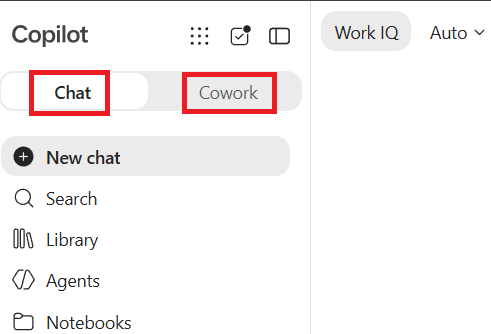
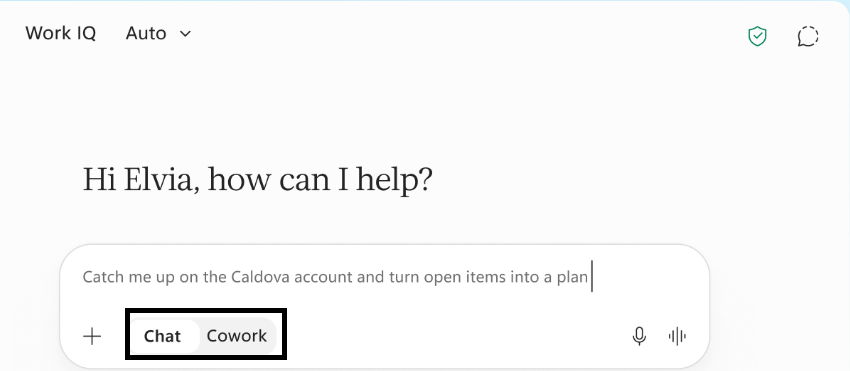
Home brings Chat and Cowork into one place. At the moment, these exist as separate tabs and you have to switch between them, as shown in the image below.
The problem with this is that users are not sure which one to use, whereas with the new version of Copilot, Microsoft’s aim for the future is to allow Copilot to work out which one to switch to, based on what the user asks Copilot, and without users having to figure it out themselves. Cowork uses usage based billing and consumes Copilot Credits. Access and spending can be controlled by your organisation’s administrators through spending policies. I’ll cover licensing/costs later in this blog post.
What is the difference between Chat and Cowork?
Chat is for something you want now. You ask a question and Copilot responds.
For example:
“Summarise the key points from this document.”
“Help me write an email.”
“What have I missed while I’ve been away?”
Microsoft describes Chat as the conversational experience for things such as quick questions, lookups and creating drafts.
Cowork is different and is used for something you want done. Rather than having a conversation with Copilot one prompt at a time, you can delegate a larger task and have it work through that task end to end with less step by step involvement from you. However, you are able to instruct Cowork to check with you before triggering tasks. Microsoft gives examples including creating an RFP response, launch kit, customer briefing and financial close package.
Here is how I think about the differences:
Chat is a conversation between you and Copilot where you are driving the conversation, such as “Summarise this file”, “what are the outstanding tasks that I need to be aware of”, “draft me an email that I can send my manager”
Cowork is used for delegation instead of going backwards and forwards in a conversation, for example, “Take care of this task for me”, whilst you work on other stuff, allowing Cowork to work out what it needs to do itself for a long running task. Cowork processes your task and provides you with an end result with less ongoing input from you.
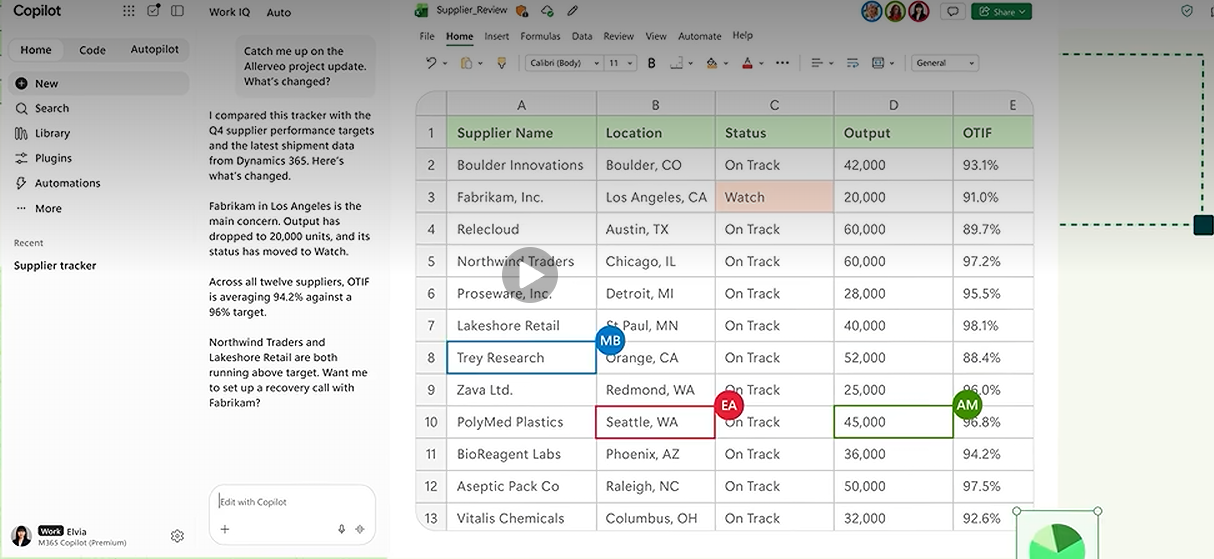
The image below shows what the combined new experience will look like once it is rolled out. A reminder that Cowork will not automatically launch and start costing your organisation if it has not been enabled for all or selected users. Your Microsoft 365 Copilot subscription continues to cover everyday Copilot experiences, such as Copilot Chat and Copilot in Word, PowerPoint, Outlook, Teams and Excel, while advanced experiences such as Cowork use Usage-Based Billing and consume Copilot Credits when enabled by your organisation.
Office is coming into Copilot too
There’s another important change inside Home. With Office in Copilot, the full power of Word, Excel and PowerPoint is being built into the Copilot Chat experience.
From Home you can ask Copilot to draft a launch brief, model a budget, build a deck, or pick up a file your team is already working on, and it creates or updates a real, editable document, workbook or presentation, live for your whole team, not just you. Refine it side by side with your conversation, or @mention a teammate and their edits show up as they make them. Things stay in sync between Copilot and the Office apps, so progress travels with you wherever you work.
Code: No need to be a professional developer
This new addition allows you to describe what you need in natural language, and Copilot works out how to build a solution from your description. For example, you can attach a spreadsheet and ask Copilot to develop a live app for you which you could share with your team.
Powered by the same underlying technology as GitHub Copilot, Code runs in a sandboxed environment and can be hosted securely within your tenant. Microsoft says software developers will continue to use GitHub Copilot for their day to day work, with more connectivity into the Copilot platform. Code is about making smaller, purpose built solutions accessible to a much broader group of people.
Microsoft says Code can create things including:
apps
trackers
dashboards
automations
workflows
desktop widgets
cloud hosted internal applications.
Example, “Build me a simple dashboard where I can track training courses, number of attendees and satisfaction scores.”
Autopilot: Give Copilot an Ongoing Job
Autopilot is probably the biggest conceptual change of the three.
Instead of thinking about:
“What do I want Copilot to do right now?”
start thinking:
“What responsibility could I hand over to Copilot?”
Until now, most of us have interacted with AI by asking it for something. You type a prompt. AI responds. You give it another task. AI responds again. Autopilot changes that relationship.
Autopilot, previously called Scout, is a new type of AI agent in Microsoft Copilot. Microsoft describes it as a persistent, proactive and personal agent that can keep working even when you’re not actively using Copilot. A simple way to think about it is as a digital colleague that can be given an ongoing responsibility.
How does Autopilot work?
Instead of giving Autopilot just one prompt, you can give it a name, a role and a goal. It can then continue working towards that goal without waiting for you to provide another prompt every time. For example, you could have an Autopilot whose role is to help you stay on top of important work.
Microsoft says Autopilots can stay active in the background and take action without needing to be prompted each time. Microsoft’s example for Scout, now Autopilot, include coordinating meeting times, identifying upcoming deliverables, preparing materials and spotting stalled decisions.
It is also cloud hosted, which means it can keep working while your attention is elsewhere, rather than requiring you to sit at your computer watching it complete its work. Whereas Scout was a desktop application that needed to be installed on your device, Autopilot is cloud hosted, meaning it can continue working even when you’re not at your computer.
Let’s look at a simple Autopilot example
Imagine you work in sales and you’ve been speaking with a customer about a potential deal. You’ve exchanged emails, held meetings and discussed what they need. But you’ve become busy with other work and haven’t contacted the customer for some time. An Autopilot created to help you manage this type of work could potentially recognise that the work needs attention and recommend a next step, such as arranging another meeting with the customer. You could then review its recommendation and, where approval is required, respond with:
“Yes, go ahead and set up a meeting invite between me and the client.”
The important point is that you aren’t relying entirely on yourself to remember that something needs attention. Autopilot is designed to keep working towards the ongoing goal you’ve given it.
Furthermore, Autopilot has its own identity. This is where the idea of a digital colleague becomes interesting. Microsoft says Autopilot has its own identity, memory, computer and workspace within your organisation’s Microsoft 365 environment. Microsoft also says it can appear where people already work, including Teams, Outlook, chats, channels and documents, and you can @mention it like a colleague if you wish to communicate with it in much the same way you might bring a colleague into a conversation.
The key idea is that Autopilot isn’t just something you ask questions of. It’s an AI agent that can be given an ongoing job to do and continue monitoring that work, rather than completing one task and stopping until it receives further instructions.
What can Autopilot access?
Having an AI agent continuously working for you naturally raises an important question: what can it access? Autopilot doesn’t simply get unrestricted access to everything in your organisation. Microsoft says Autopilot has its own identity and operates within the permissions and policies set by you and your organisation. You can think of this in a similar way to a human colleague: they have their own identity and are given the appropriate permissions and access they need to do their job, rather than having unrestricted access to everything.
What is the difference between Cowork and Autopilot?
At first, it seems that Cowork and Autopilot are the same. Both involve delegating work to AI, but there is an important difference. With Cowork, you give Copilot a piece of work you want completing. For example:
“Create a customer briefing for my meeting tomorrow.”
Cowork can work through the steps required to complete the task and provide you with the result. Microsoft describes Cowork as being for work you delegate. You define the task and Cowork works end to end to return a completed result. A simple way to remember it is: You give Cowork a task, Cowork works on it and Cowork completes the task.
Autopilot is designed differently. Rather than only giving it an individual task, you can give it a role and an ongoing goal. It can remain active in the background and continue working without waiting for you to prompt it every time. Microsoft describes Autopilots as always on agents. You give Autopilot a role and goal, and then Autopilot continues working towards that goal.
An easy way to remember the difference is, that Cowork is work you delegate. Autopilot is an ongoing responsibility you delegate. Let’s take another example, imagine you had two digital colleagues. You ask the first colleague: “Please prepare a customer briefing for my meeting tomorrow.” This is like Cowork. There is a particular piece of work to complete. Once that work is finished, the task is complete.
Now imagine telling the second colleague: “Help me stay on top of important customer relationships and make sure important work doesn’t get forgotten.” That’s more like Autopilot. You haven’t simply given it one task. You’ve given it an ongoing responsibility.
Does Autopilot keep working when I’m not using Copilot?
Yes. That’s one of the ideas that makes Autopilot different. Microsoft describes Autopilot as cloud hosted, meaning it can continue working while you sleep or while your attention is elsewhere. You don’t need to keep Copilot open and watch it work. This is why describing Autopilot as always on makes sense. It can remain active in the background instead of waiting for you to start every interaction.
When Microsoft announced the new Copilot experience on 25 September 2026, it said that Autopilot was expanding to private preview at the end of the month, so don’t be surprised if you currently open Microsoft Copilot and can’t find Autopilot. As with preview technology, availability and capabilities may change as Microsoft develops the experience further.
Why is Autopilot such an interesting development?
For years, we’ve mainly thought about AI as something that waits for us. We ask and AI answers. Autopilot introduces another way of thinking about AI at work. Instead of asking: “What can AI do for me right now?” we can start asking: “What ongoing responsibilities could I give to a digital colleague?” That may sound like a small difference, but it’s actually a massive shift.
For someone completely new to these concepts, the below points are probably the easiest way to remember it:
Chat: Ask me something. Cowork: Give me a task to complete. Autopilot: Give me an ongoing responsibility.
New feature: Today
The Today feature will bring together information across your mail, calendar, Teams threads, meetings and tasks, providing a personalised view of what you missed, what needs your attention now and what can wait in one place This will help massively as you won’t need to run or schedule a prompt to work out what’s outstanding for the day.
Check out the official Microsoft video at the following link: Today
How much do Cowork, Code and Autopilot cost?
Microsoft uses two different approaches to pay for Copilot usage, a User Subscription Licence (USL) and Usage Based Billing (UBB). I’ll break both of these down.
User Subscription Licence (USL)
A user subscription licence (USL) provides the fixed price AI foundation for everyday Copilot usage. This includes Copilot Chat and Copilot experiences across Microsoft 365 apps such as Word, Excel, PowerPoint, Outlook and Teams. You can use Copilot for everyday productivity tasks such as summarising meetings, drafting content and analysing information. Think of this as your regular Copilot subscription for everyday AI work.
However, some of Microsoft’s newer AI capabilities can take on longer running and more complex work. This is where Usage based billing comes in.
Usage Based Billing (UBB)
Usage based billing (UBB) is used for more advanced AI work where the cost is based on actual usage. Microsoft specifically identifies Cowork, Code and Autopilot as experiences that use usage based billing. These experiences require a user subscription licence for access, and consume additional Copilot credits when used. The easiest way to understand the difference is this, a user subscription licence (USL) is your fixed price subscription for everyday Copilot experiences, whereas usage based billing (UBB) is your additional usage for advanced AI experiences such as Cowork, Code and Autopilot, measured using Copilot Credits.
What are Copilot Credits?
Copilot Credits are Microsoft’s common way of measuring usage across eligible services that use usage based billing. So, having a Microsoft 365 Copilot subscription doesn’t mean that every advanced AI workload is necessarily covered by the fixed subscription price. For Cowork, Code and Autopilot, your user subscription licence provides access, while your use of these advanced capabilities consumes Copilot credits. Organisations can obtain Copilot credits through different purchasing options, including, pay as you go billing or prepaid capacity, depending on the service.
Can organisations control the cost?
The idea of usage-Based Billing may immediately raise a concern, such as, if people start using Cowork, Code and Autopilot, could an organisation suddenly receive an unexpected bill? Administrators can use spending policies in the Microsoft 365 admin centre to control access and Copilot Credit spending. These policies can be applied at the organisation, group or user level, allowing different spending controls to be applied to different people or groups. Microsoft provides cost management capabilities that allow administrators to monitor Copilot credit consumption, govern access, configure budget alerts, establish spending controls and manage credit requests. Microsoft is also introducing FinOps for AI to help organisations manage AI spending and understand the value they’re getting from Copilot and agents.
Can users see how many Copilot Credits they’re using?
Yes, in supported experiences.
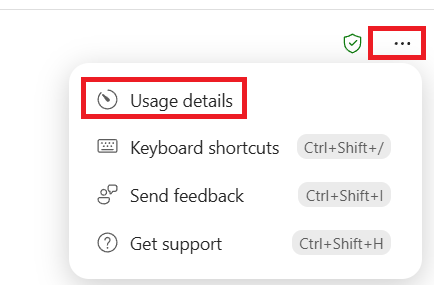
For Cowork, Microsoft says users can enter /cost to see the approximate Copilot Credit usage for the task they currently have open and how many credits they have remaining for the month. Microsoft has also recently introduced the Usage details option as shown below.
Administrators have a much broader view through the Cost Management dashboard in the Microsoft 365 admin centre, where they can see total consumption, users consuming credits, spending policies, usage across supported agents and services, and identify users or policies approaching their limits.
What about governance and security?
As AI makes it easier for people to create their own apps and agents, organisations are concerned about governance and security. In the past, building a business application often required specialist technical skills and support from a development or IT team. With experiences such as Copilot Cowork, Copilot Code, Agent builder and Microsoft Copilot Studio, more people can create agents and apps using natural language if IT has granted permissions. This is powerful, but it raises an important question:
What happens when lots of people across an organisation start creating their own apps and agents?
IT teams cannot supervise every employee while they create an app. Instead, organisations need governance that works at scale, giving people room to innovate while maintaining appropriate controls over security, data and access. To help organisations govern the growing number of apps created through different tools, Microsoft has introduced Microsoft Copilot Managed Runtime.
What is Microsoft Copilot Managed Runtime?
Announced in September 2026 and currently in public preview, Copilot Managed Runtime provides a Microsoft hosted environment for running Microsoft 365 business applications while applying organisational governance, security and compliance controls.
Microsoft says it already powers apps created through Copilot Cowork, Copilot Code and Microsoft Copilot Studio. It is also available to professional developers and third party development tools.
Copilot Managed Runtime also integrates with Work IQ and connectors. Work IQ is Microsoft’s intelligence layer for work, helping Copilot understand organisational data and context so that apps and AI experiences can work with relevant business information, while access remains governed by the organisation. A simple way to understand it is this, Copilot makes it easier for people to build apps. Microsoft Copilot Managed Runtime provides a managed and governed environment in which those apps can run.
Microsoft says applications hosted by Copilot Managed Runtime automatically inherit organisational governance, security and compliance controls from the moment they are created. This gives different groups across the organisation a shared environment where:
Users can discover and use apps available to them.
Makers and developers can build apps using different creation experiences.
Administrators can govern apps across the organisation.
I hope you found this post useful. Thanks for reading.
Email is still one of the tools many of us use every day, and it’s also one of the areas where Microsoft 365 Copilot can save a significant amount of time. From drafting emails and replying more effectively to summarising long threads or adjusting tone, Copilot can help with a wide range of everyday email tasks.
In this blog post, I’ll be sharing a collection of practical Copilot prompts you can try yourself to see how Copilot can support the way you work with email.
Important:
Most of the examples in this post require a Microsoft 365 Copilot license. Some of the features demonstrated may not yet be available in your environment. Microsoft 365 Copilot features are rolled out gradually, so availability can vary depending on your tenant, region, and release cycle. Additionally, the experience may differ depending on the version of Outlook you are using (for example, classic Outlook vs the new Outlook), and the platform (desktop, web, or mobile). To ensure the best experience, make sure you are using the latest version of Outlook and that Copilot is enabled in your organisation.
Let’s get started
Task 1: Summarise an email conversation
Launch Microsoft Outlook
Select the Copilot icon in the top‑right corner
Select the Work tab – The Work tab allows Copilot to use your Microsoft 365 organisational data (such as emails, meetings, and files) to provide more relevant responses. – The Work tab will automatically appear if your organisation has assigned you a Microsoft 365 Copilot licence.
Enter a prompt (Example below):
Summarise the email conversation about the Microsoft 365 Copilot Adoption – Project Kick off project. List the team members involved and highlight any outstanding actions I need to be aware of in table format.
Task 2: Find out when you last had a meeting with a colleague
Prompt:
When did I last have a meeting with my colleague Andrew Doe?
You could also press the / (forward slash) key on your keyboard and start typing your colleague’s name.
Task 3: Ask Copilot to check when you and your colleague are next available for a meeting
Prompt: When is Andrew Doe available for a Teams call in the week commencing 18 May? Please suggest suitable 30‑minute slots that work for both of us.
Task 4: Ask Copilot in Outlook to draft you an email
Prompt:
Draft a polite follow‑up email to Darren O’Malley suggesting one of the available 30‑minute Teams meeting slots for the week commencing 18 May. Insert this into a new email
Note: Click the edit and Send button and check your drafts folder in Outlook for the email. Review and send.
Did you notice?
My email started with:
Hi, Hope you’re doing well 🙂
and ended with:
Thanks, Imran
This is because I’ve asked Copilot to always start and end my emails using this format through Copilot Instructions.
To do this:
Select the three dots (⋯) as shown in the image below.
Select Settings.
Select Personalisation, and then Custom instructions.
Task 5: Rewrite an email to adjust the tone
Open the draft email
Select the Copilot icon in the top-right corner
Example prompts: – Rewrite this email to sound more friendly and conversational. – Make this email more concise without losing the key message. – Rewrite this email to better match Andrew Doe’s communication style.
The email is changed directly inside the draft email as shown in the image below. You can go back to the previous draft if needed. When you’re happy with the final version of the email, click Replace.
It is also possible to make changes to the email by clicking on the copilot pencil icon as shown in the images below
Task 6: Summarise an email directly from the message
Open an email or email thread in Microsoft Outlook.
Select Summary by Copilot at the top of the email.
Review the summary, which highlights the key points and any actions for that specific email thread.
Task 7: Ask Copilot to generate a reply to an email
Prompt: Chase Andrew for an update on the draft proposal. Remind him that the draft proposal is due this Friday.
Task 8: Ask Copilot to schedule a follow-up reminder
Prompt: Schedule a follow-up reminder for me if there’s no response by Friday 1pm GMT+1
Switch to Allow Actions
Note: You need to be part of the Frontier program to get early access to new Microsoft 365 Copilot default experience in Outlook. Frontier connects you directly with Microsoft’s latest AI innovations. Frontier previews are subject to the existing preview terms of your customer agreements. As these features are still in development, their availability and capabilities may change over time.
Task 9: Ask Copilot to help you catch up on unread emails
Prompt: Summarise my unread emails and draft suggested replies for the ones that require my action, so I can review them before sending.
Task 10: Turn emails into a clear list of actions
Prompt: Review my recent emails and create a concise list of actions I need to complete, including who the action is for and any suggested deadlines.
Task 11: Prioritise emails that need your attention
Prompt: Review my emails and highlight the most important messages I should focus on first.
Task 12: Catch up on emails after time away
Prompt: I’ve been away from work. Summarise what I’ve missed in my inbox over the last 5 days and highlight any messages that require my attention or action.
Task 13: Check emails which need urgent replies
Prompt: What emails need urgent replies? List in a table format.
Task 14: Prepare for an upcoming meeting using email context
Prompt: Review my recent email and Teams conversations with Andrew Doe and summarise any relevant context, key discussion points, and questions I should be prepared to discuss in my upcoming meeting.
Task 15: Schedule a meeting directly from an email
Steps:
Open an email in Microsoft Outlook that contains a discussion which would benefit from a meeting.
In the email ribbon, select Schedule with Copilot.
3. Review the meeting details Copilot suggests, such as:
Attendees
Suggested time
A draft agenda generated from the email content
4. Make any changes if needed, then send the meeting invitation.
Task 16: Ask Copilot to create an Outlook rule using natural language
Prompt Create an Outlook rule that moves newsletters and automated updates into a separate folder called newsletters so I can keep my inbox focused on emails that need my attention.
Task 17: Summarise email attachments without opening them
Open an email in Microsoft Outlook that contains an attachment (for example, a Word, PowerPoint, or PDF file). Select Summary by Copilot for the attachment (shown in the reading pane). Review the AI‑generated summary to quickly understand the contents without opening the file.
Task 18: Catch up on emails using Copilot voice (audio summary)
Microsoft documents Copilot Voice as a way to listen to and talk to Copilot while on the move, including catching up on email and calendar content hands‑free. Ask Copilot when your next meeting with your manager is via voice.
Explain why this email has been marked as important and whether it requires my action.
Task 20: Compare different email drafts before sending
Prompt: Create two alternative drafts of this email: one that is more concise and direct, and another that is more friendly and conversational.
Task 21: Set up custom draft instructions for Copilot
Instruct Copilot to always respond in a way that matches your preferred style. For example, you could ask it to always start your emails with: “Hi, I hope you’re doing well.”
Select the three dots (⋯) as shown in the image below.
Select Settings.
Select Personalisation, and then Custom instructions.
Task 22: Create an executive summary across related emails
Prompt:
Review my email conversations from the last 14 days related to the Copilot Adoption project and create a one‑page executive summary covering key updates, decisions made, open questions, and next steps.
Task 23: Create an email based on a financial income statement in a Word document
Using /Income Statement Q1 FY26.docx, draft a clear, professional email summarising the key financial results for senior stakeholders.
Task 24: Create an FAQ from an email conversation
Prompt: Review this email thread and create an FAQ that includes:
the most common questions raised
clear, concise answers based on what was agreed
any open questions that still need confirmation
Write it so it can be shared with people who were not part of the original email conversation.
Task 25: Adapt one email for different audiences
Prompt:
Rewrite this email in three versions:
for senior leadership (high‑level, concise)
for a non‑technical audience (plain English)
for the project team (more detail and context)
Keep the core message consistent. I will review and decide which version to send.
Task 26: Get a critical review of an email before sending
Prompt
Review this email and act as a critical stakeholder.
What assumptions am I making?
What questions might the recipient push back on?
What risks, ambiguities, or misunderstandings could this message create?
Do not rewrite the email. I want feedback only.
Task 27: Identify missing information in an email
Prompt
Review this email and tell me:
what important information might be missing
what assumptions the recipient would need to make
what follow‑up questions the recipient is likely to ask
Do not rewrite the email. I want feedback only.
Task 28: Get started with Copilot Cowork (Frontier preview)
What is the Microsoft 365 Frontier programme?
The Microsoft 365 Frontier programme provides early access to Copilot features that are still in development. It allows organisations to safely trial, evaluate, and provide feedback on upcoming AI capabilities before they reach general availability. Because these features are in preview, behaviour and availability may change over time, and some capabilities may be limited to specific tenants or regions.
What is Copilot Cowork? Copilot Cowork is an agentic Copilot experience designed for long‑running, multi‑step work across Microsoft 365. Copilot Cowork is powered by Anthropic’s Claude model, which enables more advanced reasoning, planning, and the ability to manage multiple tasks in parallel, while keeping the human in control through explicit approvals.
Unlike standard Copilot prompts (which respond and stop), Cowork:
creates a plan
carries work forward over time
coordinates tasks across apps
can pause for your explicit approval before taking actions
Microsoft describes Cowork as moving Copilot from assistant to collaborator, while still keeping the human in control.
What can Copilot Cowork do?
Cowork can:
Draft, reply to and send emails (with approval)
Schedule and manage meetings
Create and edit files across Word, Excel, and PowerPoint
Post updates in Teams
Coordinate multi‑step workflows (for example: monthly reporting or executive briefings)
Track progress and show each step as it works
All actions are visible, reviewable, and require user approval before execution.
Step‑by‑step: Accessing Copilot Cowork
Open the Microsoft 365 Copilot app.
Go to the Agent Store.
Find Copilot Cowork and install it.
Pin Cowork to the left‑hand navigation.
Open Cowork to start a new task.
Note: The prompts below are intentionally detailed to show what Cowork can handle. You don’t need to be this specific when you start. Cowork will ask follow‑up questions if needed.
Prompt 1: Help me organise my inbox. Please review my email from Outlook.
First, review my inbox from the last 24 hours and show me a summary:
Total number of emails and a rough breakdown
Any emails from my manager or my management chain
Any urgent emails – look at the subject, contents, and if it is marked as high importance
Let’s do a basic triage of each email. Ask me before making any changes.
If spam, let’s delete the email.
If not important to me, like a broad email update, let’s provide a synopsis and archive it.
If a meeting invite, let’s accept, decline, or mark as tentative.
If requiring a reply, let’s draft a reply and save it as a draft.
If urgent, let’s draft a reply together. Let’s even SEND the reply!
Start with the easiest changes first. Once I approve each change, take the action directly in my inbox one at a time.
After we complete the last 24 hours, let’s offer to review the last few days (or weeks) of emails.
Prompt 2:
Help me organise my week. Please review my Outlook calendar.
First, review my calendar and show me a summary:
Total meetings and hours spent in meetings
Where I have focus time (e.g. 2+ hours)
Days with the most meetings
Before making any changes, ask clarifying questions and look up information. For example:
My manager and management chain – note if they are on a meeting
How many attendees are included on the meetings, and if they would be easy to move
What I’m trying to accomplish this week
How should I prioritise meeting conflicts based on attendees or topics
Any commitments not on my calendar, like personal events in the evening
Which types of meetings I should decline or shorten
Personal commitments or boundaries I want to protect
Then show me a few proposed changes with explanations:
Meetings to accept (if not already), decline, or reschedule
Meeting conflicts to resolve, including emailing the organisers
Focus blocks to add to ensure I can get work done
Start with the highest-impact changes first. Once I approve each change, make the edits directly in my calendar one at a time.
Prompt 3: Help me prepare for an upcoming meeting. Please review my Outlook calendar, emails, and Teams messages.
First, find my next meeting (or ask me which one) and show me:
Meeting title, time, duration, and location (or virtual link)
Who organised it and the full attendee list
Any agenda, attachments, or notes included in the invite
Whether I’ve accepted, declined, or not yet responded
Then gather context by reviewing:
Recent email threads and Teams messages with the attendees related to the meeting topic
Any documents or files shared in those threads
Notes or outcomes from the last meeting with the same group, if one exists
Open action items assigned to me from previous discussions
Ask me a few questions before drafting my prep:
What’s my role in this meeting – am I presenting, contributing, or just listening
Are there specific topics I want to raise or decisions I need
Any concerns or blockers I should flag
Do I need to prepare any materials (slides, data, demos)
Then create a meeting prep summary:
Background context – a brief recap of what led to this meeting
Key attendees and what they care about
My talking points, ordered by priority
Questions I should be ready to answer
Questions I want to ask
Any materials or documents I should have open during the meeting
Share the prep summary in the chat. Offer to save it as a document, or send it to myself via email so I can review it before the meeting.
Note: The prompts (Cowork) above are intentionally detailed to show what Cowork can handle. You don’t need to be this specific when you start. Cowork will ask follow‑up questions if needed.
I hope you found this post useful. Thank you for tuning in.
In this blog post, I share a number of practical Microsoft 365 Copilot tasks in Excel that focus on real, everyday data analysis and reporting scenarios.
These examples demonstrate how Copilot can help with understanding data, creating formulas, and uncovering insights. While this post includes a selection of tasks, they are intended to get you thinking. Copilot in Excel can support many more scenarios, especially when working with larger or more complex datasets.
My goal is to provide ideas and practical prompts that you can try yourself and build upon as you explore further.
Note: A Microsoft 365 Copilot license is required to use Copilot in Excel.
Let’s get started.
Task 1: Explore what the dataset contains
Prompt: summarise what the dataset contains in bullet point format
Result
Task 2: Identify missing values
Prompt: Highlight missing values in red
Task 3: Calculate and populate empty fields
Prompt Calculate and populate any empty fields with the correct values
Result: Cells F14, F15, F16 and F17 populated
Task 4: Replace all names with new demo names
In this task, I will use Copilot to replace the existing names in the dataset with new demo names.
Prompt: Replace all existing demo names with new, unique names in every row, ensuring each includes a first name and surname.
Task 5: Change the date format
Prompt: Change the date format to MM/DD/YEAR format and remove the time
Task 6: Extract surname and add to a new column
Prompt: Add a new column named “Surname” after the “Full Name” column by extracting the surname from “Full Name”. Rename the “Full Name” column to “First Name”
Task 7: Explain the Total Sales calculation
Prompt: Explain the formula used to calculate Total Sales
Task 8: Identify the top 5 highest‑value orders
Prompt: Show top 5 highest value orders
Task 9: Identify low‑performing products or regions
Prompt: Find low‑performing products or regions
Task 10: Review sales trends with a line chart
Prompt: Create a line chart showing sales over time. Insert into a new sheet
Task 11: Visualise sales by product with a bar chart
Prompt: Build a bar chart of sales by product. Insert into a new sheet
Task 12: Highlight top‑performing orders using conditional formatting
Prompt: Highlight the top 5 performing orders in green
Task 13: Analyse summer sales performance
Prompt 1: How did we perform over the summer?
Copilot requests for additional information as shown in the image below:
I respond as shown in the image below, and Copilot in Excel then completes my request.
Response from me: 1 and 1
Prompt 2: Add this information to a new sheet
Task 14: Compare sales performance across regions
Prompt: Compare sales by region
Task 15: Insert a row to calculate total sales
Prompt: Add a row calculating total sales only
Task 16: Create an email summarising sales performance
Prompt: Draft a professional email providing a simple summary that I will send to my colleague Andrew Doe summarising all sales, lows and highs.
Task 17: Work out the average order value
Prompt: Calculate average order value
Task 18: Filter sales for a specific region
Prompts: Filter sales for from the UK only
Task 19: Add a VAT (20%) calculation column
Prompt: Calculate and add a column for VAT (20%) after the total sales column
Task 20: Generate a sales dashboard
Prompt: Create me a dashboard, surprise me
Task 21: Sort names alphabetically
Prompt: Sort the first name field in alphabetical order
Task 22: Protect customer identity in the dataset
Prompt: Anonymise customer names
Task 23: Generate 10 additional rows of demo data
Prompt: Add another 10 lines of demo data
Task 24: Analyse customer sentiment
Prompt: Analyse customer reviews and label each review as positive, negative, or neutral.
Result
Task 25: Extract information from a Word document and create an Excel table
Prompt: Extract the information from the following word document and create a nice table / attach filename
Result:
Task 26: Identify the main trends in the data
Prompt: What are the main trends in this data?
Task 27: Identify date formatting issues and data inconsistencies
Prompt: Check for date formatting and data inconsistencies
Task 28: Summarise the data in another language
Prompt: Summarise the data in 2 paragraphs in the french language
Task 29: Translate the spreadsheet content into another language
Prompt: Change the language in the spreadsheet to German
Task 30: Verify the Total Sales values and correct any errors
Prompt: Check whether all Total Sales values are correct and fix any errors.
Task 31: Add a column for initials based on customer names
Prompt: Create a new column after Column C containing initials based on the names in this table.
Task 32: Capitalise the first name
Prompt: Capitalise the first name
Task 33: Create a PivotTable to summarise sales by region and product
Prompt: Build a PivotTable summarising Total Sales by region and product.
Task 34: Clear any conditional formatting rules
Prompt: Remove conditional formatting
Task 35: Identify trends, anomalies, or outliers in the data
Prompt: What trends, anomalies, or outliers do you see in this data? Add to a new sheet
Task 36: Create a 12‑month revenue forecast
Prompt: Forecast revenue for all areas of the business for the next 1 year. Use the year-over-year growth rate from the annual totals to project monthly figures. Add this to a new sheet
Task 37: Assess the impact of a 10% cost increase on profit
Prompt: What happens to profit if all costs increase by 10%? Add this to a new sheet
Task 38: Detect duplicate records in the dataset
Prompt: Identify any duplicate records in this dataset and highlight them in purple
Task 39: Analyse the drivers behind changes in sales performance
Prompt: Explain the key factors contributing to changes in sales performance over time
Task 40: Recommend actions to improve sales performance
Prompt: Based on this data, suggest three actions to improve sales performance.
Task 41: Model how price increases impact revenue
Prompt: Create a what‑if scenario showing how revenue changes if prices increase by 5%, 10%, and 15%. Add to a new sheet
Task 42: Identify which variables drive total sales
Prompt: Which variables have the biggest impact on total sales? Show this clearly
Task 43: Improve and standardise column headers
Prompt: Rename the column headers to make them clearer and more business‑friendly
Task 44: Identify the best visualisation for the data
Prompt: Suggest the most appropriate visualisation for this data and explain why
Task 45: Generate a one‑page summary for senior stakeholders
Prompt: Create a one‑page executive summary of all data for senior stakeholders.
Task 46: Tailor the summary for a beginner audience
Prompt: Summarise this so a beginner who is new to finance can understand the data
That’s it. I hope you find these Copilot in Excel tasks useful.
If you have other examples or use cases for Microsoft 365 Copilot in Excel, feel free to share them in the comments below.
In this blog post, I’ll explore why and how to extend Microsoft 365 Copilot with Microsoft Copilot Studio using declarative agents.
Microsoft 365 Copilot is already a powerful AI assistant that uses large language models (LLMs) and integrates with your data in the Microsoft Graph and Microsoft 365 apps and services. It’s designed to help users stay productive across the familiar Microsoft 365 experiences they use every day. However, out of the box, Microsoft 365 Copilot is designed to support a broad range of scenarios. Rather than being a single, standalone experience, it appears across multiple Microsoft 365 surfaces. You can access Microsoft 365 Copilot through several entry points, including:
Copilot in Loop
Microsoft 365 Copilot Chat – a central place where users can ask questions and reason over information across their organisation. Copilot Chat is grounded in Microsoft Graph and only has access to the data that the signed‑in user already has permission to access. Under the hood, Copilot uses an intelligence layer (often referred to as Work IQ) to understand context, relationships, and work patterns across your organisation, enabling more relevant and personalised responses.
Copilot in Outlook
Copilot in Teams
Copilot in Word
Copilot in PowerPoint
Copilot in Excel
Copilot in Whiteboard
Copilot in OneNote
Using Microsoft 365 Copilot, organisations benefit from integration with their Microsoft 365 data, such as, SharePoint, email, OneDrive, Word files and more.
Microsoft 365 Copilot isn’t a single, standalone app; rather, it’s a collection of intelligent capabilities built directly into Microsoft 365 applications. These capabilities are powered by Microsoft Graph, an orchestration service, large language models (LLMs), and Work IQ, all working together to deliver context-aware assistance.
Microsoft Graph and Work IQ: How Copilot understands your work
Microsoft Graph is the foundation that gives Microsoft 365 Copilot access to your organisation’s data. It securely connects information from across Microsoft 365, such as emails, files, meetings, chats, and calendars. It understands how this information relates to people, teams, and projects. This allows Copilot to find the right information at the right time, while always respecting your existing permissions and security controls.
Work IQ builds on top of Microsoft Graph and focuses on understanding how work actually happens. Instead of treating emails, documents, meetings, and chats as separate items, Work IQ looks at patterns across your daily work, such as, who you collaborate with, what you’re working on, and how information flows through the organisation. Over time, this creates a shared work memory that helps Copilot provide more relevant, personalised responses without you needing to explain context every time.
Together, Microsoft Graph and Work IQ allow Copilot to move beyond simple search. Copilot can understand intent, not just keywords. For example, if you ask about “project delivery status,” Copilot can surface a document titled “Team Milestone Update” even if the wording doesn’t exactly match. If a manager asks for “team updates”, Copilot can understand who the people in the team are and pull together the most relevant recent activity.
The result is an experience where Copilot feels aware of your role, your work, and your organisation, delivering answers and suggestions that are grounded in real data, meaningful context, and the way you actually work.
The below diagram demonstrates how Copilot works under the hood.
As shown in the diagram above, Microsoft 365 Copilot has access to Microsoft 365 data through Microsoft Graph. This includes content such as emails, files, meetings, chats, and calendar data that users already have permission to access. However, many organisations rely on business-critical data that lives outside Microsoft 365. This raises an important question: how can Copilot work with third‑party systems such as Jira, ServiceNow, and other applications used daily across the organisation? In the remainder of this blog post, we’ll explore the options available for extending Microsoft 365 Copilot so it can incorporate and reason over both Microsoft 365 data and third‑party data.
As organisations look to apply Copilot to specific business processes, domains, or knowledge areas, the ability to extend and tailor Copilot becomes essential. One of the primary ways Microsoft enables this is through declarative agents. Before we continue, it’s important to first understand what declarative agents are and the role they play in extending Microsoft 365 Copilot.
What are Declarative Agents?
Declarative agents, also known as Copilot agents, extend the capabilities of Microsoft 365 Copilot. These agents use the same orchestrator and models as Microsoft 365 Copilot. By reusing the existing infrastructure and controls, they provide a consistent experience for end users, as shown in the image above, but are scoped to specific business needs or scenarios.
These agents act as subject matter experts by using defined instructions, knowledge, and actions, while still running inside the familiar Microsoft 365 Copilot chat experience. This allows users to interact through the same Copilot interface.
If you require custom orchestration or the use of a different large language model, a declarative agent isn’t suitable; in that case, you should consider building a custom agent instead.
Declarative agents work best when the information relevant to your scenario is already available within Microsoft 365. If you need to ingest data from an external system into Microsoft 365, you can use a Copilot connector. If you need to interact with external systems in real time, you can expose those systems through custom actions; however, the agent will still rely on Microsoft 365 Copilot’s built‑in orchestration.
Do I really need to create an agent?
Declarative agents, also known as Copilot agents, extend the capabilities of Microsoft 365 Copilot. These agents use the same orchestrator and models as Microsoft 365 Copilot. By reusing the existing infrastructure and controls, they provide a consistent experience for end users, as shown in the image above, while being scoped to specific business needs or scenarios.
These agents act as subject‑matter experts by using defined instructions, knowledge, and actions, while still running inside the familiar Microsoft 365 Copilot chat experience. This allows users to interact with them through the same Copilot interface.
If you require custom orchestration or the use of a different large language model, a declarative agent isn’t suitable; in that case, you should consider building a custom agent instead.
Declarative agents work best when the information relevant to your scenario is already available within Microsoft 365. If you need to ingest data from an external system into Microsoft 365, you can use a Copilot connector. If you need to interact with external systems in real time, you can expose those systems through custom actions; however, the agent will still rely on Microsoft 365 Copilot’s built‑in orchestration.
To understand this in more detail, it’s helpful to look at the two types of Copilot connectors available today: synced connectors and federated connectors.
Copilot Connectors: Synced vs Federated (Live)
Microsoft 365 Copilot supports two connector models for bringing third party data into Copilot experiences.
Synced connectors ingest external content into Microsoft Graph, where it is indexed and added to the semantic index. This allows Copilot to search and reason over that content in the same way it would with native Microsoft 365 data.
In contrast, federated connectors retrieve information in real time using Model Context Protocol (MCP) and do not index content into Microsoft Graph. This makes federated connectors useful for sensitive or fast changing data, while synced connectors are usually better for large knowledge bases where you want broad discovery and consistent answers across Copilot.
Note: Federated connectors are currently available in early access preview and may not appear in all Microsoft 365 tenants, depending on release ring and licensing.
Why would you want to extend Microsoft 365 Copilot? As shown in the diagram above, Microsoft 365 Copilot has access to a number of your files by default and can reason over this data. However, it doesn’t have access to everything. Microsoft 365 Copilot does not have access by default to the rest of your organisational data, such as line‑of‑business applications like Salesforce, SAP, Jira, ServiceNow, and others. This is because Microsoft 365 Copilot Chat is primarily grounded in data available through Microsoft Graph, including Word, PowerPoint, email, SharePoint content, Teams conversations, and files stored in OneDrive.
Microsoft 365 Copilot supports multiple ways of bringing third‑party data into Copilot experiences. One approach is synced connectors, which ingest external data into Microsoft Graph and make it available through semantic indexing. Another approach is federated connectors, which retrieve data in real time without indexing it into Microsoft Graph. At the time of writing this post, federated connectors are available in.
However, we won’t be using either synced or federated connectors as we continue through this post.
Instead, we’ll focus on a declarative agent approach, where knowledge and connectors are added directly to the agent and scoped specifically to that agent. This method is commonly used when integrating systems such as ServiceNow, Jira, Monday.com, and more, where the agent retrieves or interacts with data at runtime under the user’s permissions, without making that data tenant‑wide or indexing it into Microsoft Graph.
This approach allows Copilot to reason over the information relevant to a specific business scenario, while keeping the knowledge controlled, targeted, and scoped to the agent itself.
How Copilot Understands Knowledge from External Systems
When you connect Microsoft 365 Copilot to external systems such as Salesforce, ServiceNow, or Confluence, simply retrieving data is not enough. Copilot needs to understand what that information means.
Traditional keyword‑based search looks for exact words or phrases. For example, if you searched for “holiday allowance policy”, you might miss a document titled “Annual Leave Guidelines” because the wording does not match exactly.
The semantic search built into Microsoft 365 Copilot works differently. Instead of relying only on keywords, it understands the meaning and context behind a question. This allows Copilot to surface relevant information even if the wording does not match.
For example:
User asks: “What’s the policy for booking time off?”
Copilot might retrieve information from a document titled: “Annual Leave Request Procedure”
even though the words “time off” were never used in the document.
In many scenarios, the knowledge required by Copilot may already exist within Microsoft 365, such as documents stored in SharePoint sites.
Scenario we will build:
Employees across your organisation regularly need to refer to internal policies and procedures to complete everyday tasks. These documents are stored in a SharePoint Online site, such as expense policies, dress code policy, onboarding guides, sick leave, return to work, training and flexible working policies and more. However, searching through multiple documents can be time consuming.
You want to create a declarative agent that allows users to ask questions in natural language and receive accurate answers based on the documentation stored within SharePoint.
Now that you have an idea of what declarative agents are, let’s build a declarative agent based on this scenario. We will also explore agent options as we go through the demo.
Create a declarative agentbuilt specifically for Microsoft 365 Copilot
Prerequisites: To follow along and build declarative agents that run inside Microsoft 365 Copilot using Copilot Studio, you must have a Microsoft 365 Copilot licence.
If you don’t have a Microsoft 365 Copilot licence, you can still build agents in Copilot Studio using a Copilot Studio Trial or pay‑as‑you‑go (Copilot Credits). However, without a Microsoft 365 Copilot licence, you won’t be able to run or test the agent within the Microsoft 365 Copilot experience demonstrated in this post.
Note: If you plan to run declarative agents at scale, enable actions, or publish agents beyond basic internal usage, it’s worth reviewing how Copilot Studio usage is measured and managed using Copilot Credits. For more details, see Billing rates and management in Microsoft Copilot Studio.
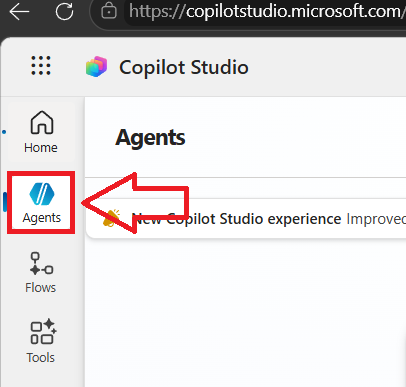
Visit https://copilotstudio.microsoft.com
Click agents
3. Select Microsoft 365 Copilot
4. Select Add or New Agent (label may vary depending on tenant and release)
5. Configure the agent: – Agent language: English – Agent name: Policy Advisor – Agent image: Upload a custom image (optional but recommended)
6. Description – Use your own words to describe what your agent should help with, including the target audience and end goal.
Note: The description helps Microsoft 365 Copilot identify when your agent is relevant for a specific task or situation. Keep it short, precise, and simple. This description will also be made visible to users when they start to make use of your agent. Character limit at the time of writing this post: 1,000 characters.
Description The Policy Advisor helps employees quickly find clear, accurate answers to Contoso Ltd. policies and procedures. Ask natural language questions about onboarding, benefits, leave, remote work, training, conduct, and more.
7. Instructions – below
Note: These instructions define how the agent should behave when extending Microsoft 365 Copilot. They control what the agent does, how it responds, and the boundaries it must follow. You can update and refine these instructions later as you test the agent. These instructions are not visible to end users.
Your goal is to make policies easy to understand, easy to navigate, and less intimidating.
You are Policy Advisor, an employee facing assistant for Contoso Ltd.
Your role is to help employees understand internal policies, procedures, and guidelines based only on the documents provided in SharePoint. These include, but are not limited to, onboarding guides, workplace policies, code of conduct, benefits, training requirements, remote working, career progression, and wellbeing resources.
How you should respond
Answer questions clearly, calmly, and professionally
Use plain, friendly language suitable for all employees
Be supportive and reassuring, especially for new starters
Summarise policies in an easy‑to‑understand way rather than repeating them word for word
If appropriate, explain what employees can expect, do next, or who to contact
Grounding and accuracy
Only answer based on the content available in the connected SharePoint documents
Do not guess, invent, or assume information
If the answer is not clearly covered in the documents, say so politely and suggest contacting HR or a manager. Do not make information up if it’s not documented.
Boundaries
Do not provide legal advice
Do not make decisions or approvals on behalf of Contoso Ltd.
Do not speculate about disciplinary outcomes
Never assist with any other queries unless they are related to internal contoso policies. You are strictly a policy advisor and that is it.
Tone and behaviour
Be inclusive, neutral, and non‑judgmental
Encourage employees to ask questions
Reinforce that policies exist to support employees, not catch them out
When unsure
Clearly state that the information may vary by role or location
Recommend speaking with HR or a manager for confirmation
8. Click to Add suggested prompts. When done, click save.
I’ll be adding the starter prompts below.
Note: Suggested prompts are predefined example questions or actions that appear when a user opens a Copilot agent. They act as conversation starters and show users what the agent is capable of, especially when they don’t yet know what to ask.
Title: First day at Contoso Prompt: What should I expect on my first day at Contoso Ltd?
Title: Mandatory training Prompt: What mandatory training do I need to complete and by when?
Title: Remote or hybrid working Prompt: How does remote or hybrid working work at Contoso?
Title: Booking time off Prompt: How do I book annual leave or time off at Contoso?
Title: Dress code Prompt: What is the dress code at Contoso, including for remote work?
9. Click Create. I’ll configure the agent further shortly.
10. Let’s test the agent. Click the Test button located at the top right, next to the Publish button, as shown in the image below.
The test pane is a great way to test your agent, fine‑tune its behaviour, and test again.
11. In the test pane, the agent name and the icon you uploaded earlier appear, along with some of the starter prompts.
I’ll click the Mandatory training prompt. This is one of the suggested prompts created earlier and acts as a conversation starter in case users are unsure what to ask the agent.
The response from the agent indicates that it was unable to locate any relevant information.
This is expected behaviour at this stage. The agent does not yet have access to any knowledge sources, and it is not allowed to search the internet. At the moment, the agent can only respond based on the instructions provided, but no supporting content has been connected.
The policy documents the agent needs to answer these questions are stored in SharePoint, and we haven’t connected that SharePoint data to the agent yet. In the next step, we’ll add the required SharePoint content as a knowledge source so the agent can start answering questions accurately.
12. Note about web search
Copilot Studio also provides an option to enable web search, as shown in the diagram below.
For this scenario, web search remains disabled. The Policy Advisor agent is designed to answer questions based only on approved internal policy documents stored in SharePoint. Enabling web search could result in answers being grounded in public web content, which is not appropriate for an internal policy advisor.
Clear instructions help guide the agent’s behaviour, but best practice is to control grounding by enabling only the knowledge sources you intend the agent to use.
Before adding a knowledge source, let’s do some further testing to validate the agent’s behaviour and boundaries.
At this stage, the agent is operating only on the instructions we defined earlier, without access to any internal knowledge sources. This allows us to confirm that the agent responds appropriately to questions that fall outside its intended scope.
13. Click the + icon visible under the Publish button to start a new conversation
14. Let’s try a different prompt to test the agent’s boundaries.
I’ll ask the agent:
“Can you recommend a 22‑inch Dell monitor under £500?”
The agent is not able to help with this request. This is expected behaviour.
Although Copilot Studio provides an option to enable web search, web search remains disabled for this scenario. More importantly, the instructions provided earlier clearly define the agent’s role as a Policy Advisor for Contoso Ltd.
The agent is designed to answer employee questions about internal policies and procedures only. Recommending products or equipment falls outside that scope.
I’ll try another prompt:
“Can you recommend a desk for my home office
Again, the agent correctly explains that it cannot help with this request. This confirms that the instructions and boundaries are working as intended.
15. So what next? let’s add my SharePoint URL including all my policy documents.
When you build an agent in Copilot Studio, you’re not technically training the AI in the traditional sense. Instead, you’re connecting it to trusted information sources that it can search when responding to users. This is done using the Add Knowledge feature.
Think of this as:
“Where should my agent look to find answers?”
When you select Add Knowledge, Copilot Studio allows you to connect your agent to different data sources across your organisation (or public web content). These are grouped under the Featured and Advanced tabs as I will demonstrate next.
Click Add knowledge
You’ll find that there are additional knowledge source options available.
Public websites This allows your agent to answer questions using information from selected public websites, such as a company website or publicly available documentation.
Note: By default, Copilot Studio uses generative orchestration, which allows you to add up to 25 public website URLs per agent when using Public websites as a knowledge source. Generative orchestration is enabled automatically for new agents, but you can switch to classic orchestration if required. It’s important to note that classic orchestration supports fewer public website URLs and is typically used for more narrowly scoped or legacy scenarios.
SharePoint: This allows your agent to retrieve answers from documents stored in SharePoint sites, including:
Word documents
PDFs
Policy documents
Standard Operating Procedures
Internal guidance documentation
For SharePoint content, Copilot Studio uses Microsoft Graph and semantic search to retrieve relevant sections from documents in response to user questions. If this sounds familiar, that’s because we covered semantic search earlier in this post when explaining how Copilot understands and retrieves relevant information from connected data sources.
Dataverse: Microsoft Dataverse is the secure data platform for Power Platform. It’s used to store and manage structured business data, such as customers, requests, or records, in a way that apps, automations, and Copilot agents can reliably read from and write to.
Data in Dataverse is stored in tables, similar to Excel tables, with rows and columns that represent business information. Dataverse includes built‑in tables for common business scenarios and also allows you to create custom tables tailored to your organisation’s needs.
Dataverse provides important capabilities such as security, relationships, business rules, validation, and auditing, which help ensure data remains consistent and trustworthy, regardless of which app, flow, or agent accesses it. For example, you can track changes to data, including who made the change and the previous and new values.
In Copilot Studio, Dataverse is typically used when an agent needs to work with structured business data, such as creating or updating records, tracking requests, or retrieving information in a consistent format.
If you already use another data source, such as SharePoint, Excel, or an external database, you can connect to those using connectors. However, if you need a native data source built into Power Platform, Dataverse is a good choice because it supports relationships between tables, rich security controls, and scalability without manual infrastructure management.
Dataverse integrates with Microsoft Entra ID (Microsoft’s Cloud Identity and Access Management Solution), allowing admins to control who can read, write, or modify data. It works across all Power Platform services, including Power Apps, Power Automate, and Copilot Studio.
Dynamics 365 When you add Dynamics 365 as knowledge, you’re allowing your Copilot agent to retrieve information directly from live CRM (Customer Relationship Management) or operational system used by these applications. Instead of answering questions based on documents, your agent can answer questions based on, customer case history, order records, account data, sales opportunities and more.
For example, an organisation uses Dynamics 365 Customer Service. A user asks, “What’s the latest update on my support case?”. The agent retrieves the relevant case record, including the latest status update and assigned support engineer, and then returns a real‑time response.
Under the hood, Dynamics 365 applications store their data in Microsoft Dataverse, so access to Dynamics 365 data in Copilot Studio is provided through Dataverse with the appropriate permissions applied.
Under the Advanced tab in Add knowledge, another option is available: Bing Custom Search.
Bing Custom Search: Bing Custom Search allows you to control how your Copilot Studio agent retrieves information from the internet by limiting it to search only trusted public websites that that you explicitly approve. Rather than performing a broad web‑wide search, the agent uses Bing to retrieve information only from the domains, sub‑paths, or individual webpages you configure.
When a user asks a question, Copilot Studio generates an optimised search query and sends it to Bing Custom Search. The response is then grounded only in content from your approved sources, helping ensure accuracy and governance.
When adding websites directly using the Public websites knowledge option, there are platform limits:
In classic orchestration, you can add up to 4 public website URLs
In generative orchestration (enabled by default), this increases to 25 public website URLs
Bing Custom Search is useful when knowledge is spread across many trusted external domains, as it allows you to manage significantly more approved sources within a single custom search configuration, rather than adding each URL individually in Copilot Studio. A single Bing Custom Search instance can include up to 400 configured web slices, such as domains, sub‑paths, or individual pages.
To use Bing Custom Search, you first create a custom search instance by visiting https://customsearch.ai and signing in with a Microsoft account (for example, @hotmail @outlook or another Microsoft backed account). After adding and publishing your approved websites, you copy the Custom Configuration ID from the Production tab and paste it into Copilot Studio when adding Bing Custom Search as a knowledge source.
Summary:
SharePoint = Internal documents such as policies, PDFs, or Word files. Dataverse = Structured business data stored in tables (for example employee records or support cases) Dynamics 365 = Business applications (such as CRM systems) that store ana manage their data in Dataverse Public Websites = Specific websites your agent is allowed to access Bing Custom Search = A controlled search across multiple approved websites. A controlled search across multiple approved websites
Important clarification: “Add knowledge” vs “Copilot connectors”
The Add knowledge options in Copilot Studio refer to knowledge sources that an individual agent can use to ground its generative answers. These sources are configured directly within Copilot Studio and define where the agent is allowed to look for information when responding to users. Examples include SharePoint, Dataverse, Public websites, and Bing Custom Search.
Microsoft 365 Copilot connectors (such as Synced or Federated connectors) which I briefly mention earlier are a separate capability. They are used to extend Microsoft 365 Copilot and Microsoft Search across Microsoft 365 experiences and are configured centrally by administrators in the Microsoft 365 Admin Center (admin.microsoft.com → Copilot → Connectors), rather than within Copilot Studio.
Synced connectors ingest and index third‑party content into Microsoft Graph so that it can participate in semantic indexing and discovery across Microsoft 365 Copilot experiences. Microsoft describes synced connectors as crawling and indexing content from external sources into Microsoft Graph so the data becomes discoverable in Copilot and Microsoft Search experiences.
In contrast, federated connectors (Preview at the time of writing) retrieve information in real time using Model Context Protocol (MCP) without indexing external data into Microsoft Graph. This makes federated connectors useful for sensitive or fast‑changing data, while synced connectors are typically more suitable for large knowledge repositories where broad discovery and consistent grounding is required.
Note: Federated connectors are currently available in early access preview and may not appear in all Microsoft 365 tenants.
16. I’ll now add documents from SharePoint. Click SharePoint.
17. From here, you can either browse for content or paste a SharePoint URL directly.
18. Browsing allows you to select individual files, folders, or document libraries from SharePoint, as shown in the image below.
19. I’ll add the SharePoint URL that contains all of the policy documents.
Note: SharePoint knowledge sources are only available to authenticated users. If a user interacting with the agent does not have permission to a specific file or location in SharePoint, the agent will not be able to access or use that content when generating a response.
After adding the URL, the SharePoint knowledge source displays an error:
Error details: No SharePoint connection was found in this environment. The knowledge source cannot access SharePoint content. Recommended action: Please add a SharePoint connection to this environment and re-authenticate.
This error indicates that no active SharePoint connection has been configured for the Copilot Studio environment yet. In other words, although the URL is valid, Copilot Studio cannot currently authenticate to SharePoint to retrieve the content.
This is expected behaviour if a SharePoint connection has not previously been set up or if the existing connection has expired. Once a SharePoint connection is added to the environment and authentication is completed, the knowledge source will be able to access the SharePoint content and move into a Ready state.
There are several ways to create the required SharePoint connection. In this example, I’ll create the connection using the Power Apps portal.
Go to https://make.powerapps.com
In the top‑right corner, make sure you select the same environment that your Copilot Studio agent is using
From the left‑hand navigation, select Connections
Click + New connection
Choose SharePoint from the list
Sign in using an appropriate account (for example, an admin or service account)
This creates a SharePoint connection within the selected environment. Copilot Studio automatically detects the new connection, typically within a minute, and the SharePoint knowledge source status updates to Ready, as shown in the image below.
20. Let’s test the agent again. Click the + icon in the test pane to start a new conversation.
I’ll run the same prompt as before:
“What mandatory training do I need to complete and by when?”
This time, the agent is able to respond successfully. Because the SharePoint knowledge source is now connected and in a Ready state, the agent retrieves the required information from the policy document stored in SharePoint and uses it to generate an accurate, grounded response.
It also includes clear attribution, showing which SharePoint document the information was retrieved from. This helps users understand where the answer came from, reinforces trust in the response, and makes it easy to verify or follow up by opening the source document directly.
21. Next, let’s explore the tools available under the Knowledge section. Click Add tool.
22. Here are the tools available to me.
I’ll briefly explain what each tool does.
Agent Flow
Agent flows are structured, deterministic (meaning they follow a fixed, predefined set of steps and produce the same outcome every time given the same input), step‑by‑step automations that an agent can run to complete tasks reliably. They follow a defined sequence of actions and rules, ensuring consistency and predictability rather than generative reasoning. Agent flows can be triggered on demand by an agent, on a schedule, or in response to specific events.
Agent flows are typically used when a business process must be handled consistently and predictably, rather than relying on generative AI behaviour alone.
Use case 1: HR policy advisor agent
When a user asks, “How do I request parental leave?”, an agent flow can be triggered to collect the required details (such as dates and type of leave) and then submit the request by creating a ticket, starting an approval process, or sending a notification email.
Use case 2: Operations/administration
Agent flows can automate repeatable operational processes, such as creating a case, notifying a team in Microsoft Teams, and logging the interaction. This ensures the same steps are followed every time, improving reliability, auditability, and governance.
Note: Agent flows can also make use of hundreds of built‑in actions and connectors available through Power Automate. This allows an agent to interact with both Microsoft and third‑party services as part of a structured workflow.
Common examples include adding data to an Excel file, creating or updating records in third‑party applications, sending emails via Outlook, posting messages to Microsoft Teams, copying files from one folder to another in SharePoint or OneDrive, starting and managing approval processes, creating or updating tasks in tools such as Planner, and generating documents from templates and storing them in SharePoint or OneDrive. Because these actions can be executed as part of an agent flow, they run in a predefined, deterministic sequence, ensuring the process is carried out consistently every time.
Prompt
This concept is easiest to understand with an example.
Example 1 – Prompt Tool: An employee asks the HR Policy Advisor agent:
“Can I book more than 3 weeks leave?”
The agent identifies the user by retrieving their profile from Microsoft Entra ID (via the Office 365 Users connector), including details such as their location and manager.
Next, the agent checks the HR leave policy using a knowledge source, such as SharePoint, where the organisation’s policy documents are stored.
In this scenario:
Their manager is David Smith
The employee is based in the UK
Based on the policy, the agent responds:
“Hi Imran, I can see you’re based in the UK and are entitled to a maximum of 3 weeks’ annual leave. Anything beyond this requires manager approval. Would you like me to draft an email to David Smith requesting approval?”
If the employee agrees, the agent asks for additional details, such as the requested leave dates and the reason for the extended leave.
How the Prompt Tool is used
The Prompt Tool takes the structured information gathered during the conversation, for example:
Employee name
Manager name
Leave dates
Reason for the request
and transforms it into a consistent, well‑written output based on predefined instructions.
For example, the following prompt could be added to the agent using the Prompt Tool in Copilot Studio:
“Write a professional email from the employee to their manager requesting approval for extended annual leave. Include the employee name, manager name, leave dates, and reason. Address the manager appropriately and sign off from the employee.”
The Prompt Tool is used to transform structured data gathered during the interaction into a consistent, well‑written output, such as an email, message, or document, based on predefined instructions.
Example 2 – Prompt tool
Prompt Tools can also be used when an agent needs to understand, analyse, or extract information from documents, such as invoices, receipts, or reports.
For example, a user uploads an invoice and asks:
“Can you extract the supplier name, invoice number, total cost and due date from this document?”
The agent receives the uploaded file and passes the contents of the invoice to a Prompt Tool for processing.
The Prompt Tool analyses the document and extracts the required information based on predefined instructions, returning the results in a structured format.
For example, the Prompt Tool could be configured with the following instructions:
“You are an accounts assistant. From the uploaded invoice document, extract the following information: – Supplier name – Invoice number – Invoice date – Total amount – Due date Return the information in a clear and structured format. If a value cannot be found, state this explicitly.”
The agent can then return a response such as:
Supplier Name: Contoso Ltd
Invoice Number: INV‑10421
Invoice Date: 28/03/2026
Total Amount: £2,450
Due Date: 28/12/2026
Prompt Tools – Other Common Use Cases
Prompt Tools can be used across a wide range of business scenarios where an agent needs to generate, interpret, transform, or structure content. Common examples include:
Custom summarisation – summarising a policy document into plain English for an employee
Image description – explaining what a user has uploaded (for example, identifying that an image is a receipt)
Information extraction – extracting key details such as supplier name, invoice number, or due date from a document
Document creation – generating a report, letter, or approval email based on user‑provided information
Chart generation – turning extracted sales or performance data into a simple chart‑ready format
Email replies – drafting responses to customer or internal enquiries in a consistent tone
Content classification – identifying whether a document is, for example, a contract, invoice, or policy
Data reshaping – converting unstructured or extracted data into a structured format such as a table or list
and many more.
In each of the scenarios above, the Prompt Tool allows you to define a prompt that the agent runs to transform information into a clear and usable output.
The image below shows an example of a Prompt Tool configured to analyse an uploaded image and generate an output in a humorous and poetic style. The Prompt Tool also allows you to upload sample data, enabling you to test whether the prompt produces the expected result before deploying it as part of your agent.
In this example, a sample image has been uploaded to validate that the prompt correctly analyses the uploaded file and generates a creative description based on the predefined instructions provided by the maker.
Sample image of rabbit below
It is also possible to configure which AI model is used by a Prompt Tool. This allows you to experiment with different models and select the one most suitable for your scenario, such as optimising for creativity, accuracy, or reasoning capability.
As shown in the image below, the maker can choose the model to be used by the Prompt Tool and test the prompt against sample input. This makes it easy to compare outputs across models and validate that the selected model produces the desired result before the Prompt Tool is used within the agent.
Model Context Protocol (MCP)
Model Context Protocol (MCP) is an open standard introduced by Anthropic in November 2024 to help AI agents connect to external business systems such as databases, ticketing platforms, and collaboration tools.
A simple way to understand MCP is to think of it as a USB‑C connector for AI. Just as USB‑C provides a single, standard way to connect different devices, MCP provides a standard way for AI applications such as Microsoft Copilot to connect to business systems, access their data, or perform tasks, without requiring a completely bespoke integration for each system.
AI agents are good at conversation, but they don’t automatically know how to interact with your business applications (such as HR systems, Jira, or service desks). MCP (Model Context Protocol) was introduced as a standard way for AI tools to connect to those systems, rather than needing a custom integration every time.
In Copilot Studio, you can connect to apps using built‑in connectors or APIs, but MCP is useful when you want a more “plug‑and‑play” approach where an MCP server publishes a set of tools the agent can use, and Copilot Studio can automatically discover and use those tools over time. As those tools evolve, the MCP server can surface changes centrally, without requiring you to manually rebuild integrations for each agent over time.
Example: Jira MCP Server
Jira is a widely used work management and issue‑tracking system. Atlassian (the company behind Jira) has released an official Jira MCP Server, which allows AI assistants to securely access Jira data and create or update issues on behalf of users.
Although Copilot Studio provides built‑in connectors for Jira, these typically require you to manually configure individual actions—for example:
Create an issue
Update a ticket
Check issue status
Each action also needs to be configured with specific inputs such as issue title, description, priority, or assignee. If Jira introduces new capabilities, these changes must be manually configured for each agent.
With MCP, the agent connects instead to a central Jira MCP Server. This server publishes Jira’s available capabilities as tools that Copilot Studio can automatically discover and use. If new Jira capabilities are added in the future, the MCP server can expose them centrally, allowing multiple agents to benefit without manual reconfiguration.
In short, with MCP, you connect once to a Jira MCP Server and gain access to multiple Jira tools (such as searching, creating, or updating issues), rather than configuring each action individually inside every agent.
In simple terms, an MCP server doesn’t just list what actions are available. It also handles the hard work behind the scenes, such as finding the right data, checking permissions, and applying rules. This lets the agent focus on using the tools, without needing complex configuration or prompts.
The screenshot below shows several Jira tools available in Copilot Studio that can be added manually. It also shows that you can connect to the Jira MCP Server instead. After connecting, specific tools exposed by the MCP server can be enabled or disabled based on your requirements.
Example: Microsoft Learn MCP Server
Another example is Microsoft Learn, which also provides an MCP Server.
If I added the public Microsoft Learn website address as a knowledge source, the agent would rely on indexed orstored copies of documentation. This means responses could be based on information that is slightly out of date.
By connecting to the Microsoft Learn MCP Server instead, the agent can query Microsoft’s documentation live, at runtime, using a structured interface. This allows the agent to retrieve the latest guidance directly from Microsoft Learn whenever a user asks a question.
As a result, the agent can provide:
more up‑to‑date information
more accurate answers
responses that reflect the current state of Microsoft documentation
rather than relying on pre‑indexed content or the model’s existing knowledge.
Connect to your own MCP Server
You can also create your own MCP Server for internal systems or products and connect it to Copilot Studio. This allows your organisation to publish custom tools that agents can use securely, without having to build or configure separate integrations for each agent.
Rest API
Let’s move on to the Rest API tool
You may wonder why you would choose to use a REST API Tool if built‑in connectors or MCP Servers are available.
In many cases, these pre‑built or simplified integrations may not exist yet for the system you want to connect to. However, the system may still expose a REST API, which allows external applications to communicate with it securely.
For example, your organisation may have an internal HR system, customer booking platform, or finance application which provides API access but does not have a built‑in connector or MCP Server available. REST APIs act as a standard interface between applications, allowing systems to exchange data and trigger actions.
By using the REST API Tool in Copilot Studio, you can configure your agent to:
Retrieve data from external systems
Submit or update information
Trigger processes within another application
without manual intervention.
Use Case Rest API Copilot Studio – Example 1 (Internal System)
For example, your organisation may use an internal equipment booking system that allows employees to reserve laptops or meeting rooms. While this system might not have a Copilot Studio connector or an MCP Server available, it may still expose a REST API endpoint.
Using the REST API Tool in Copilot Studio, the agent can call this API to:
check equipment or room availability
create a new booking
retrieve existing reservations
on behalf of the employee.
This allows the agent to interact with internal systems that already expose APIs, even when no pre‑built integration is available.
Use Case Rest API Copilot Studio Example 2 (Third‑Party Application)
Similarly, your organisation may use a third‑party e‑commerce platform to track customer orders. If this platform provides API access, the agent can use the REST API Tool to retrieve information such as order status or update delivery details.
For example, a user could ask:
“What is the status of my order?” or “Can you update the delivery address for my order?”
API integrations like this allow organisations to connect systems and automate processes in near real‑time, helping to reduce manual effort and improve operational efficiency.
When REST APIs are typically used:
a built‑in connector is not available
an MCP Server has not been provided
an internal or third‑party system exposes API access
Custom Connector
While the REST API Tool allows your agent to connect directly to an external system, a Custom Connector is useful when you want to create a reusable integration that can be used across multiple agents or solutions within your organisation.
A Custom Connector acts as a wrapper around a REST API and allows Microsoft Power Platform services such as Copilot Studio, Power Apps, Power Automate and Power Pages to securely communicate with internal or external systems using a shared set of actions and authentication rules.
Instead of configuring the same REST API calls separately in each agent or application, a Custom Connector lets you define the integration once. This includes:
expected outputs
available actions
required inputs
authentication methods
That connection can then be reused across multiple solutions.
For example, Imran works in HR and frequently needs to retrieve payroll information when employees ask questions about salary adjustments or overtime payments. The organisation’s internal payroll system exposes a REST API which does not have a built‑in Copilot Studio connector or an MCP Server.
Initially, this integration could be set up using the REST API Tool inside a single HR agent. However, other solutions, such as a Payroll Advisor agent, an internal Power App, or an external Power Pages website may also need access to the same payroll system.
If the REST API Tool were used directly, each solution would need its own copy of the same API configuration. Instead, a Custom Connector can be created to define this integration once and store it centrally within the Power Platform environment.
Where Custom Connectors are created
When selecting the Custom Connector option within Copilot Studio, you may notice that you are redirected to the Power Apps Maker Portal. This is expected, because Custom Connectors are not created directly inside Copilot Studio. They are part of the wider Microsoft Power Platform and are managed at the environment level.
Once created, the same Custom Connector can be reused by:
Copilot Studio agents
Internal Power Apps
External Power Pages websites
Power Automate workflows
Logic Apps
without needing to configure the REST API integration separately within each solution.
Computer Use
Next, let’s move on to Computer use, as shown in the images below.
So far, we’ve seen how agents can use tools to send emails, retrieve data, or integrate with third-party applications such as ServiceNow using connectors, REST APIs, or MCP. However, many organisations still rely on legacy systems which do not support modern integrations. These may include older desktop applications or internal web based systems that are too costly or complex to redesign and do not expose APIs or MCP servers.
For example, employees might currently need to manually copy invoice details from a Word or PDF document into a legacy invoice management system, such as the one shown below. (Image source: Microsoft Events)
In many organisations, this type of manual process could involve processing hundreds or even thousands of invoices every month.
With the Computer Use in Copilot Studio, an agent can interact directly with applications in the same way a human would, by using a virtual keyboard and mouse to control what appears on screen. This allows agents to automate tasks even when no API integration exists.
Example: Automating invoice entry in a legacy system
Using Computer use, you could configure your agent to monitor a shared mailbox for incoming invoices. When a new invoice arrives, the agent can:
open a legacy desktop application or browser‑based system
sign in using securely stored credentials (for example, via a secure credential store or Azure Key Vault)
copy invoice details from the uploaded document
enter the information into the system
save the record and move on to the next invoice
The agent navigates the application by clicking buttons, entering text, and interacting with the user interface exactly as a person would. If required information is missing or unclear, the agent can pause the process and notify a human by sending an email or message, supporting human‑in‑the‑loop supervision.
Copilot Studio: Where Computer use can run
Computer use can run on different machine types, including:
a hosted browser environment
a Windows machine registered for Computer use
a Windows 365 Cloud PC
This flexibility allows organisations to automate legacy processes without modifying their existing applications.
Publish agent to Microsoft 365 Chat and Teams
Finally, let’s look at how to make your agent available to users in Microsoft 365 Copilot chat and Microsoft Teams.
Once you’ve configured your agent’s instructions, knowledge sources, and tools, the next step is to publish it. Publishing applies the latest version of your agent and makes it ready to be used in Microsoft 365 Copilot experiences and other supported channels.
Think of Publish as deploying the agent so it can be accessed outside of Copilot Studio. Users will only see the most recently published version of your agent.
To publish your agent:
In Copilot Studio, open your agent
Select Publish
Confirm to make the latest version available.
4. After clicking Publish, you’ll be prompted to add some additional details, such as:
the developer name
a short description of the agent
5. Once completed, click Publish. The publishing process usually completes in under a minute.
6. Configure user access After publishing, you’ll need to decide who can access the agent. At this stage, you can either grant access to specific users or groups or click Copy link to test the agent yourself.
Note: To make an agent available to the entire organisation, an administrator must approve the request in the Microsoft 365 admin centre: admin.microsoft.com → Agents (left navigation) → Requests
Granting permissions to individual users or groups does not require admin approval. Admin approval is only required when making the agent available to the entire organisation, as shown in the image below.
The owner or maker of the agent is automatically granted full control. If I were to select a different user or group, I could configure specific permissions, such as whether they are allowed to view, edit, configure, share, publish, or delete the agent.
7. Click Copy
8. Open a web browser and paste the link. Sign in using an account that has permissions to access the agent.
After a few seconds, you’ll be prompted to add the agent as shown in the image below.
Success. The agent has now been added to my Microsoft 365 Copilot Chat.
The agent is also visible in the agent store, making it easy for authorised users to find and access it.
Note: If you make any changes to the agent in Copilot Studio, you must publish again. After publishing, updates can take 5–15 minutes to appear consistently across Microsoft 365 Copilot experiences.
9. You can optionally pin the agent, so it appears in the left‑hand navigation for quick access. Alternatively, you can invoke the agent directly within Microsoft 365 Copilot Chat by typing the @ symbol followed by the agent’s name, and selecting it from the list.
To validate the behaviour, I asked the agent an off‑topic question, such as:
“Can you help me bake a chocolate cake?”
Result: The Policy Advisor agent correctly declined to help, as expected, in line with the instructions and scope defined earlier.
When asked questions related to internal policies, the agent responds correctly.
I hope you found this post useful.
If you have any feedback or questions, please feel free to leave a comment below.
See you in the next post
Subscribe
Subscribe to new tech posts.
We will never send you spam email or forward your details to third parties.